Advanced Requirements
Generated Division Requirements
When you create class divisions, ScheduLearn automatically generates subject requirements behind the scenes. These requirements ensure that divisions and tracks behave correctly. Because you normally do not need to interact with them, they are hidden by default.
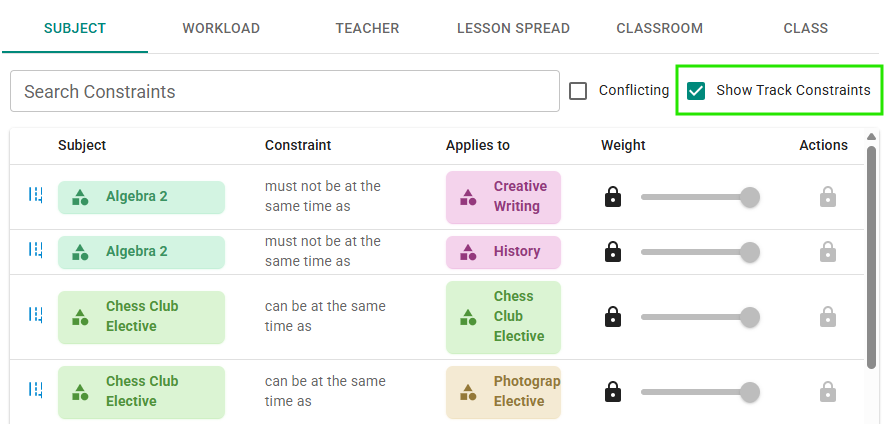 Generated subject requirements for divisions.
To view these requirements, open the Subject tab under Requirements → Rules. Once you have divisions or pinned lessons, a line under the list says how many automatic requirements are hidden. Click Show to list them (green rectangle above). They include the requirements created by pinning lessons. An unmet automatic requirement is always listed. Automatic requirements can't be edited or deleted, and they are marked with a blue track or pin icon to distinguish them from user-created requirements.
They keep subjects in the same track apart, and let subjects in different tracks run at the same time.
You only need to pay attention to these requirements if you add a requirement that contradicts them. For example, in the screenshot above, the generated requirement states: Algebra 2 must not be at the same time as History. If you later create a requirement stating that Algebra 2 must be at the same time as History, the two can't both be met, which creates a scheduling conflict.
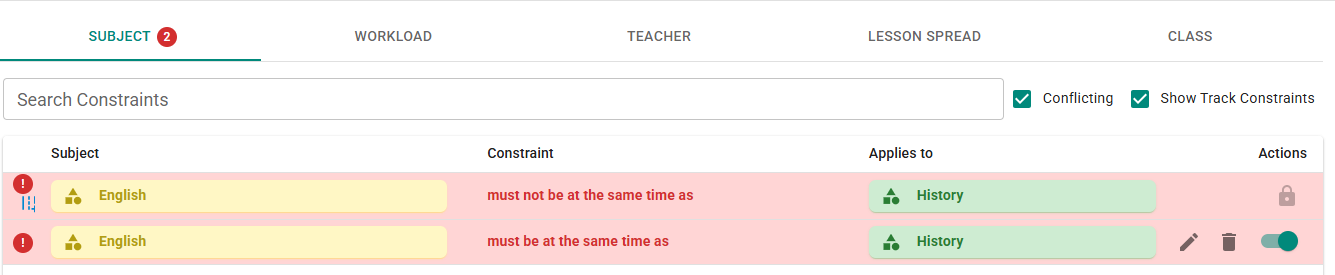 A user-created requirement and an automatic division requirement that can't both be met.
In the screenshot above, the user-created requirement Algebra 2 must be at the same time as History contradicts the division-generated requirement above it, creating a scheduling conflict. When a hidden requirement is part of a scheduling conflict, ScheduLearn lists it on the Subject tab even while the others are hidden, so you can see every requirement involved. To fix it, change your own requirement or edit the tracks on the class card.
Requirement Weights
Requirement weights are an advanced feature that is off by default. Turning them on for a type of requirement lets you make its requirements soft. A soft requirement is a preference that ScheduLearn meets when it can, like a yellow (prefers not to) period in a teacher's availability.
To enable requirement weights, click the gear icon on the toolbar of the Requirements page, or open the Solver Settings on the Schedule page. Both show the same Requirement Weights panel.
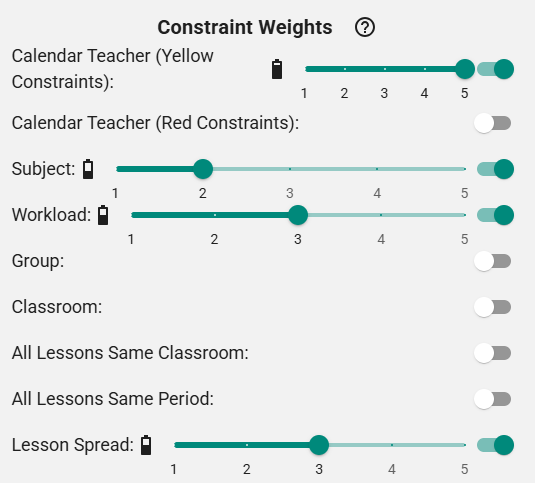 Enabling Requirement Weights.
Each category has its own switch. The ones you'll use most are Subject, Workload and Lesson Spread, where each requirement gets its own weight (see below), and the availability categories (see Weights for Availability). Turning a category on shows a slider for the whole category. ScheduLearn multiplies each soft requirement's own weight by its category's weight. In the screenshot above, yellow teacher periods count most (5), then workload and lesson spread requirements (3), then subject requirements (2).
Enabling weights changes nothing by itself. Every requirement stays hard until you change its weight. Turning a category off again makes its soft requirements hard.
Each requirement can be set to one of the following:
- Off
- 1–5 (soft requirement, increasing importance)
- Hard (requirement)
Subject Tab
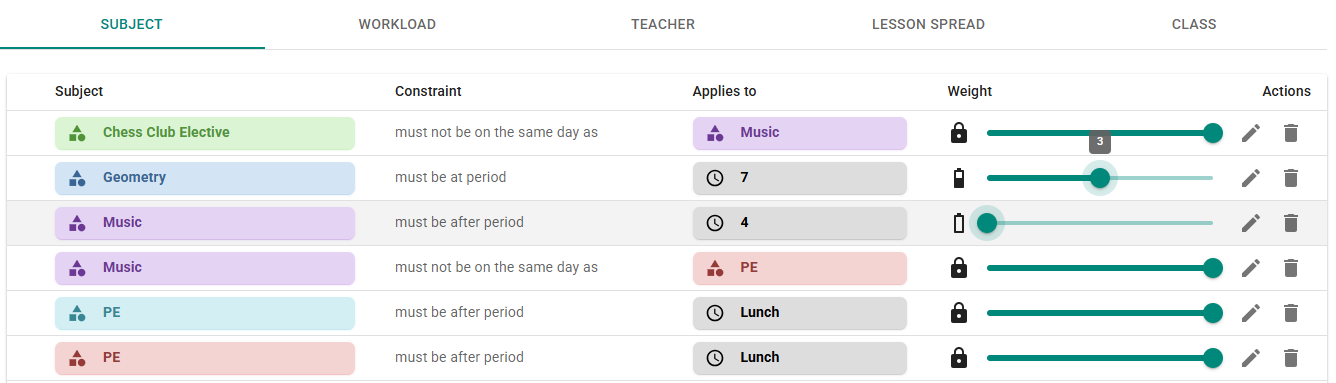 The Subject tab with weights enabled.
In the screenshot above, the second requirement is weighted (3), making it a soft requirement. The third requirement is off. The rest are hard (note the lock icon).
Workload Tab
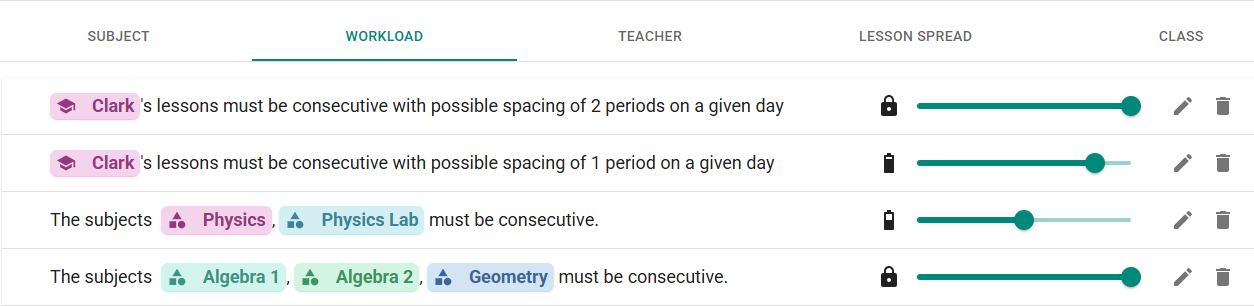 The Workload tab with soft and hard requirements.
Here a soft and a hard requirement work together. The first two requirements are:
- Brown's lessons must be consecutive with spacing of 1 period (soft, weight 4)
- Brown's lessons must be consecutive with spacing of 2 periods (hard)
This means the schedule must meet the 2-period requirement, but will try to keep the gap to 1 period if possible.
Lesson Patterns Tab
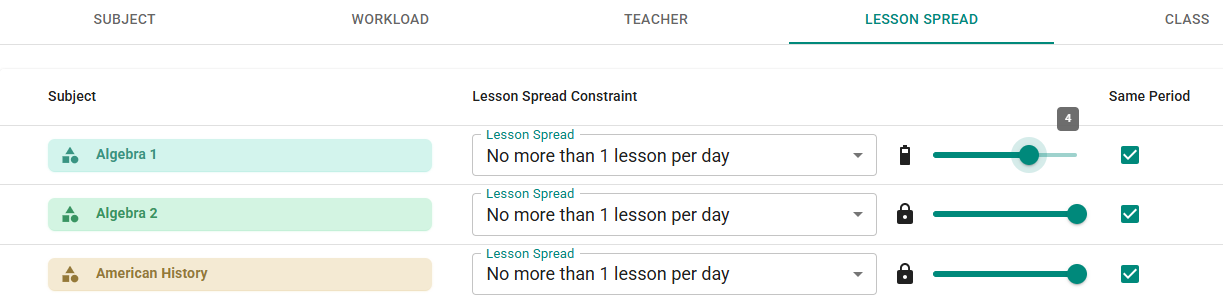 The Lesson Patterns tab with weights enabled.
In the screenshot above, the lesson spread on Algebra 1 (no more than 1 lesson per day) is a soft requirement with weight 4.
Note
Optimize lessons to be at same period is always soft.
Weights for Availability
Availability isn't weighted period by period.
- Teachers — each teacher has a single weight that applies to all of their yellow and red cells once Teacher Availability (Yellow Requirements) or Teacher Availability (Red Requirements) is enabled. See Teacher Requirement Weights.
- Subjects — enabling Subject Availability (Red Requirements) turns every subject's blocked cells into strong preferences. The category's slider sets how strongly ScheduLearn avoids them.
Changing Many Weights in Select Mode
The Subject and Workload tabs let you update many requirements at once, and so does the Lesson Patterns tab if its weights are on. Click Turn on Select Mode in the toolbar, select the requirements you want (or click Select all), then set their weight with the slider. If weights aren't enabled for that category, the slider is replaced by an Enable / Disable button. On the Subject and Workload tabs, Delete removes the selected requirements.
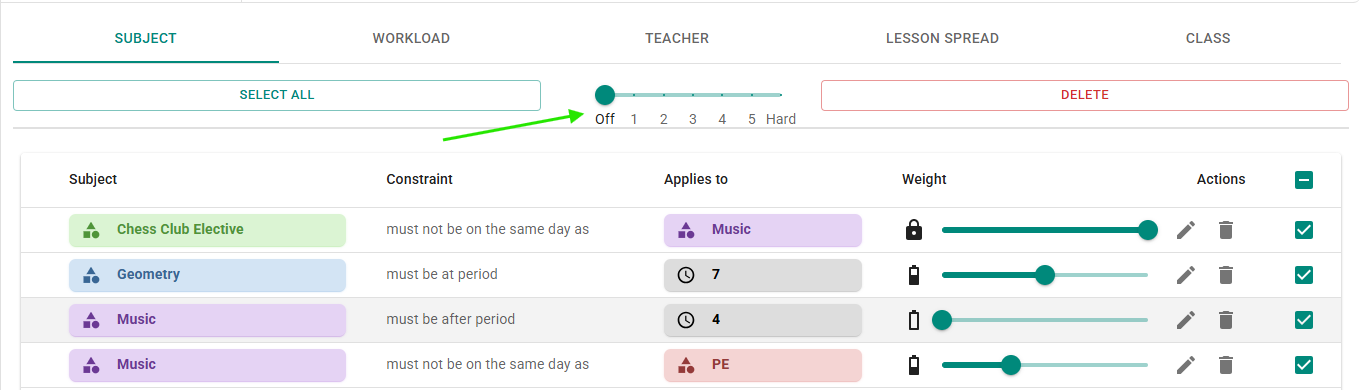 Setting weights in Select Mode. The green arrow points to the weight slider.
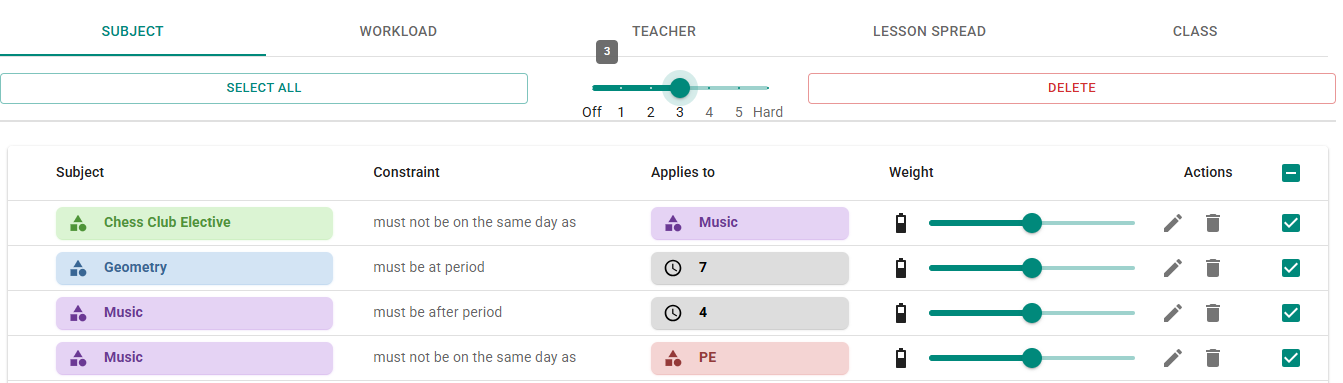 Requirements updated to weight 3 in Select Mode.
What to Do When a Scheduling Conflict Is Unclear
The cause of a scheduling conflict isn't always clear. Often you only need to fix it, not fully understand it.
If you get a scheduling conflict and believe a valid schedule should exist, the most common causes are:
- Incorrect subject data
- Incorrect or contradictory requirements
If the data is correct, no schedule can meet all your requirements. Finding this out early saves time, and often a small change fixes it.
ScheduLearn provides several tools to help isolate the problem.
-
Validate the schedule.
Validating checks each class, teacher and classroom on its own. If one can't be scheduled, the full schedule can't be either. Problems between several classes or teachers only show up when you generate (see Generating and Validating the Schedule).
-
Examine the requirements in the scheduling conflict.
This is often the best clue. If every requirement in the scheduling conflict involves the same two teachers, the problem likely lies between them.
In such cases, we recommend generating a schedule only for the affected teachers: in Build A Partial Schedule, choose Only selected and pick those teachers. Turn off Respect pinned lessons elsewhere if you want to test the teachers on their own, without pinned lessons from the rest of the schedule. If that partial schedule also fails, you have successfully isolated the incompatibility. It may be due to insufficient overlapping availability, or because their subjects must occur simultaneously but no shared slot exists.
Generating partial schedules is fast and helps confirm that individual components of the schedule are valid, even when the full schedule is not.
If you've been able to reduce the problem to a smaller section of the schedule and still don't know what to do, we recommend using the Place as many as possible option on the Schedule Page (see Solver Configuration). This places as many lessons as it can while meeting every hard requirement. The lessons it leaves unplaced point to the problem, though they may not be its only cause.
-
Make requirements soft.
If the schedule still won't generate, you can turn hard requirements into strong preferences. ScheduLearn can then break them, and the ones it breaks show what it would take to find a schedule.
For teachers' red (can't work) cells:
- In the Requirement Weights section of the Solver Settings, enable Teacher Availability (Red Requirements) (see Teacher Requirement Weights).
- On the Teachers page, turn on Select Mode, click Select All, then click Edit.
- Under Teacher weight, set the slider to 5, then save your changes.
- Generate the schedule.
Red cells now count as strong preferences instead of hard requirements. Any red cell that ScheduLearn had to schedule a lesson in shows up as an unmet requirement, telling you which teachers' availability is causing the scheduling conflict. When you're done, set the teachers back to Hard, or turn off Teacher Availability (Red Requirements).
The same works for subject, workload and lesson spread requirements. Enable Subject, Workload or Lesson Spread under Requirement Weights, then on the matching tab of the Requirements Page click Turn on Select Mode, click Select all, and set their weight to a number, such as 5 (see Changing Many Weights in Select Mode). Any of these requirements that ScheduLearn breaks shows up as unmet.