Requirements
The Requirements Page is where you view, change and add requirements. Almost all requirements can also be managed from their own pages, but this page puts them all in one place.
It also points out two very different kinds of problems, and it helps to know which one you're looking at:
| Unmet requirements | Scheduling conflicts | |
|---|---|---|
| What it means | The schedule as it stands, the one on the Schedule Page, breaks the requirement. | You validated or generated, and ScheduLearn couldn't build a schedule: no schedule can meet all of these requirements together. |
| When you see it | Any time, while you work on the schedule. | After a validate or generate fails, until you run one again. |
| Color | Red for hard requirements, yellow for soft ones | Indigo |
| How to fix it | Move lessons, or generate the schedule again. | Loosen or turn off one of the requirements, then solve again. |
See Unmet Requirements and Scheduling Conflicts below.
A hard requirement (red) must always be met. A soft requirement (yellow) is a preference that ScheduLearn meets when it can. See Key Concepts.
Viewing, Modifying, and Creating Requirements
The page has two parts, listed under Requirements in the sidebar:
- Rules — the lists of requirements: the Subject, Workload and Lesson Patterns tabs.
- Availability — when each teacher, class, classroom (if enabled) or subject can be scheduled.
Each part reopens where you last left it. Badges show what needs attention in your current schedule: on the Rules side, how many requirements are unmet; on the Availability side, how many lessons are placed in time a teacher, class, classroom or subject isn't available, counted the same way as the numbers beside the names in its list, in red for lessons in time they can't be scheduled and amber for time they'd rather not.
Subject Requirements
Any requirement added to a subject or lesson appears here. You can modify, delete, or disable requirements using the action buttons on the right of each row.
You can also hover over a subject or lesson to reveal additional teacher and class information.
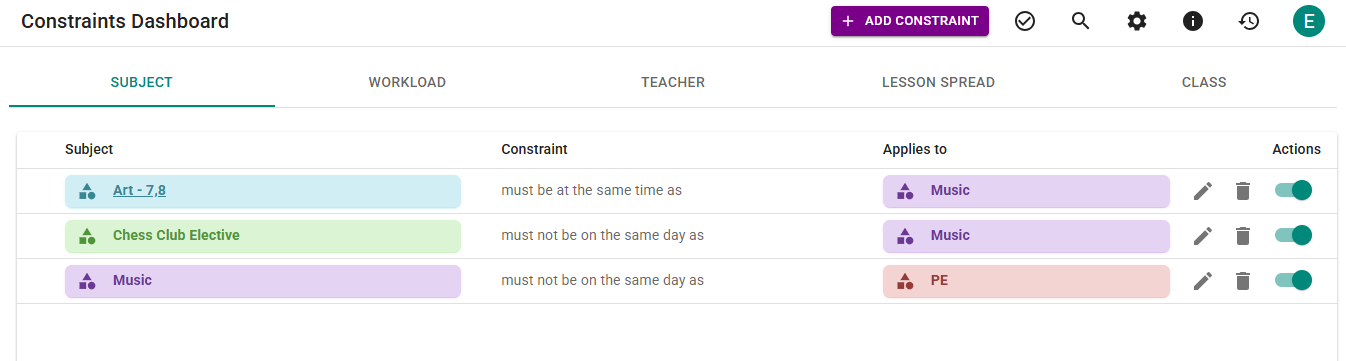 The Subject tab.
Workload Requirements
To add a workload requirement, navigate to the Workload tab and select Add Requirement in the toolbar. You can then choose from the list below.
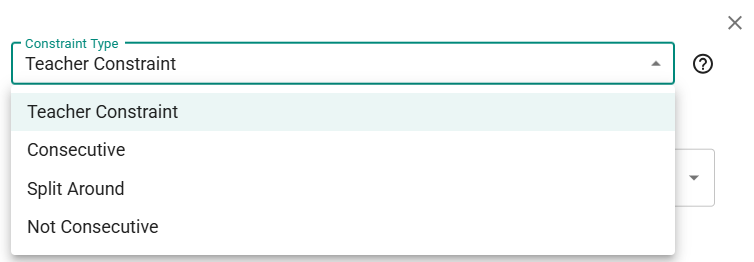 Adding a Workload Requirement.
Requirement Types
-
Teacher Requirement
The teacher-specific requirements described in the Teacher Requirements section of the Teachers page. Select the teacher, then the requirement type, then fill in the details.
-
Consecutive
Requires a group of subjects to occur consecutively, with no more than the Spacing between them.
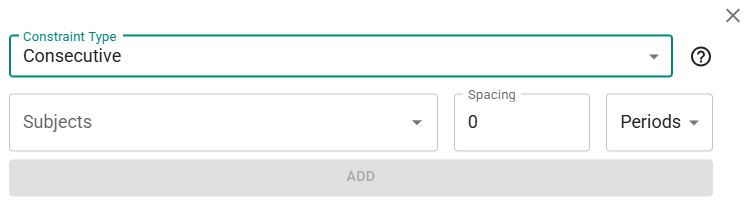 Adding a Consecutive Requirement.
This is more general than the teacher-specific Lesson’s Consecutive requirement, which is effectively the same rule but automatically applied to all of a teacher’s subjects. With this requirement you may choose any subjects — even unrelated ones taught by different teachers.
Note
If the subjects belong to different schedule structures, you must use Minutes instead of Periods.
-
Not Consecutive
Lessons of Subjects A must be at least the Spacing apart from lessons of Subjects B. Leave Subjects B empty to space the lessons of Subjects A apart from each other.
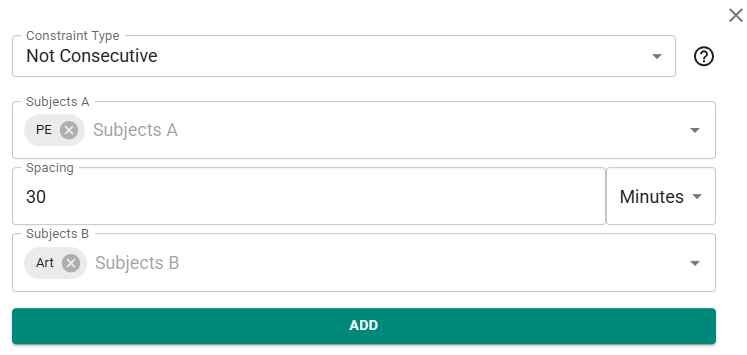 Adding a Not Consecutive Requirement.
Note
If the subjects belong to different schedule structures, you must use Minutes instead of Periods.
-
Lesson Placement
Controls where the lessons of one or more subjects land in the day: exactly, at most, or at least a number of lessons — in total across the week or on each day — placed before, before or at, at, after or at, after, or between chosen periods.
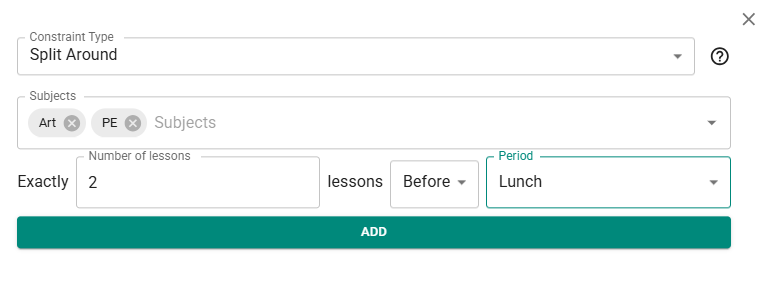 Adding a Lesson Placement Requirement.
A common use case is distributing “Specials” evenly between morning and afternoon in elementary schools. In the example above, there are 2 specials, Art and PE. Say they each have 2 lessons, so there are 4 lessons in total. “Exactly 2 lessons in total before period 4” ensures 2 specials in the morning and 2 in the afternoon. Other examples: “At most 1 lesson each day at period 1” stops the subjects competing for the first period, and “At most 0 lessons in total between period 5 and period 7” keeps them out of that window entirely.
Before/after count lessons that sit entirely on that side of the period; at/between count lessons occupying those periods (a double lesson counts at every period it covers).
Note
You can only select subjects from the same schedule structure.
-
Lesson Spread
Spreads the combined lessons of the chosen Subjects across the days, following the Rule you pick. For example, Math and Science with No more than 1 lesson per day never share a day.
Availability (Teachers, Classes, Classrooms, Subjects)
Availability shows when each teacher, class, classroom and subject can be scheduled. Choose which with the tabs at the top of the page. What the calendar shows depends on what you pick in the list on the left:
- All (nothing picked; click All at the top of the list to come back to it) — each period shows how many can't be scheduled in it, in a deeper red the more there are (gray for classes and classrooms). The bar along its bottom shows how many can't, would rather not and are free. Point at a period to see who's blocked. Click it to compare them.
- One item — click a name to see just their week; their row is highlighted and marked with an eye. A red ✕ means they can't work then (for a subject, that the period is blocked), an amber – means they'd prefer not to, and a green period is free. A class or classroom is only ever off, so its blocked periods have a gray ✕ instead, lighter than no school. Click a period to change it, drag across several to change them together, or click a day or period heading to change that whole column or row, just as in Edit Availability on their card.
- Compare — check other names to compare them with the one you're viewing. Once you're comparing, clicking a name adds it too. To see one of them alone again, click the eye beside their name. Each period shows one bar per pick, in the order of the chips above the calendar, drawn like that item's own calendar: green when free, red ✕ when they can't (gray for a class or classroom that's off), amber – when they'd rather not. A period that's green all the way across is free for everyone you picked, and a problem is outlined on the bar of the person it belongs to. Point at a period to see who's free, who isn't, and any lesson placed against them. Pointing at a person's chip outlines their bars and enlarges their dots above each day. A problem a change creates pulses once. Click a bar to change just that person. Pointing at a period brings in a strip along its top, and clicking it changes everyone you picked: anyone further behind catches up first, then they all move as one. Dragging across periods, or clicking a day or period heading, also changes everyone. With more than 20 picks, each period shows a count and a bar along its bottom, as in All, and clicking it changes everyone you picked.
Classes and classrooms are either available or blocked; teachers and subjects can also have periods they'd rather avoid.
Every change you make here shows a message with Undo, in case it was a slip. It names who changed, and anyone you picked who was left as they were.
Items with lessons placed in time they're not available for are listed first, under In blocked time, each with how many of those lessons it has: a red count for lessons in time it can't be scheduled, an amber one for time it would rather not. Compare these there puts them side by side. While the page shows a scheduling conflict, the section is Blocked your last solve instead, and its indigo counts are the periods in the scheduling conflict. The search box narrows the list, finding subjects by their classes and teachers too, and Select all matching adds everything it finds to the comparison. Each tab remembers what you picked.
In a time-based schedule, back-to-back periods that look the same are drawn as one band with a single label, and time is counted in hours and minutes rather than periods. Hover over a band to see when it starts and ends on the clock at the left (a free stretch shows nothing).
A period outlined in red (or amber, for a preference) has a problem. In your current draft, it means a lesson is placed there; hover over it to see which. The rest of that lesson gets a thin outline in the same color, so a lesson that only overlaps a sliver of blocked time still shows where it sits. While the page shows a scheduling conflict, the periods in it are outlined in indigo instead.
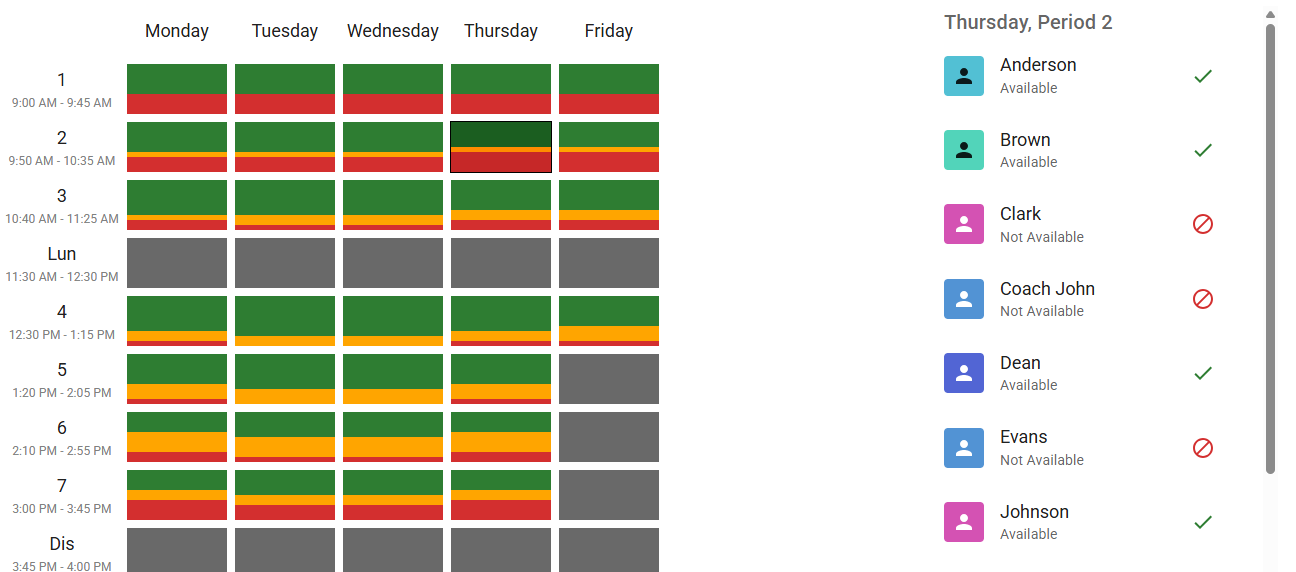 Teacher availability (Thursday, Period 2).
Multiple Schedule Structures
Availability is set for each schedule structure. For example, a teacher who works in both Middle School and High School and does not teach on Tuesdays needs Tuesday blocked in each structure.
To learn more, see the Teachers Guide section on availability across schedule structures.
When your school has more than one schedule structure, switch between them at the top of the list (below). With more than two, point at the switch to see them all. Anyone you picked who isn't in the structure you're viewing keeps their chip, dimmed, but gets no bar in the calendar.
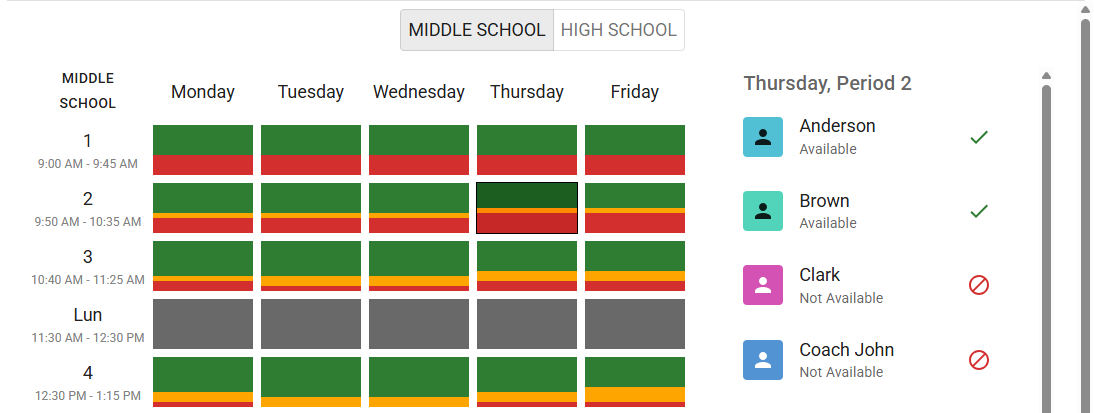 Selecting a schedule structure on the Availability tabs.
Lesson Patterns
This tab lists each subject’s lesson spread requirement, and whether all its lessons should be at the same period (Same Period), with the same teachers (Same Teacher) and in the same classroom (Same Classroom, when classrooms are on).
The Same Period checkbox is always treated as a soft requirement, so it never stops a schedule from being built.
If either the lesson spread rule or the same-period preference is unmet, the row appears highlighted.
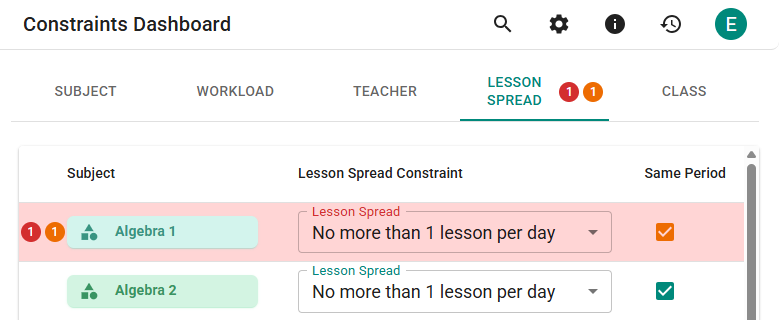 Unmet Lesson Spread Requirements.
In the example above, two Algebra 1 lessons were placed on the same day at different periods. Thus:
- the hard requirement (No more than 1 lesson per day) is unmet (red)
- the soft Same Period preference is also unmet (yellow)
The red and yellow numerical indicators on the Schedule Page direct you to the relevant tabs.
The Toolbar
Each Rules tab opens with a row for finding requirements:
- The search box finds requirements by name.
- Unmet shows just the unmet requirements. While the page shows a scheduling conflict, Scheduling conflicts takes its place and shows just the requirements in the scheduling conflict. The two are set separately.
- Type (on the Workload tab) picks which kinds of workload requirement to show.
While anything narrows the list, the row says how much is left (for example, 2 of 5) and offers Clear. Select Mode and Add Requirement sit at the end of the same row.
The Subject tab leaves out the requirements created automatically, such as those for tracks and pinned lessons, unless one of them is unmet. When there are any, a line under the list says how many are hidden, with Show to list them too.
 The Unmet filter, showing 1 of 11 requirements.
Choosing What the Filter Shows
The Export Page and the Schedule Page's Day View pick which items they cover with a filter whose button, at the start of the field, sets how your picks are read:
- All — everything, including anything you add later.
- Only — just the ones you pick. Anything you add later stays hidden until you pick it too.
- All except — everything but the ones you pick. Anything you add later is shown.
Picking a name while the filter is on All starts a new Only list. Only and All except each remember their own picks, so you can switch modes and come back without losing them; the menu shows how many each one holds. When the filter hides anything, a line under the field says how many, with a Clear filter link that goes back to All.
The settings icon in the page header also allows you to enable Requirement Weights (see the Requirement Weights section on the Advanced Requirements Guide).
Unmet Requirements
An unmet requirement is one that the current schedule, the one on the Schedule Page, breaks. ScheduLearn checks the schedule as you work, so moving a lesson can fix an unmet requirement or create one. An unmet hard requirement is marked in red, and an unmet soft requirement in yellow.
Unmet requirements show up:
- as red and yellow counts next to Requirements in the sidebar and on each tab of this page
- as highlighted rows on the tabs; click Unmet above the list to show only those
- on the lessons themselves on the Schedule Page (see Viewing problems from the Schedule Page)
In the screenshot below, Algebra 1 must be at period 3, but the schedule has it at period 2, so the requirement is unmet. The sidebar counts 1 unmet hard requirement and 17 unmet soft requirements, and each tab shows its own counts.
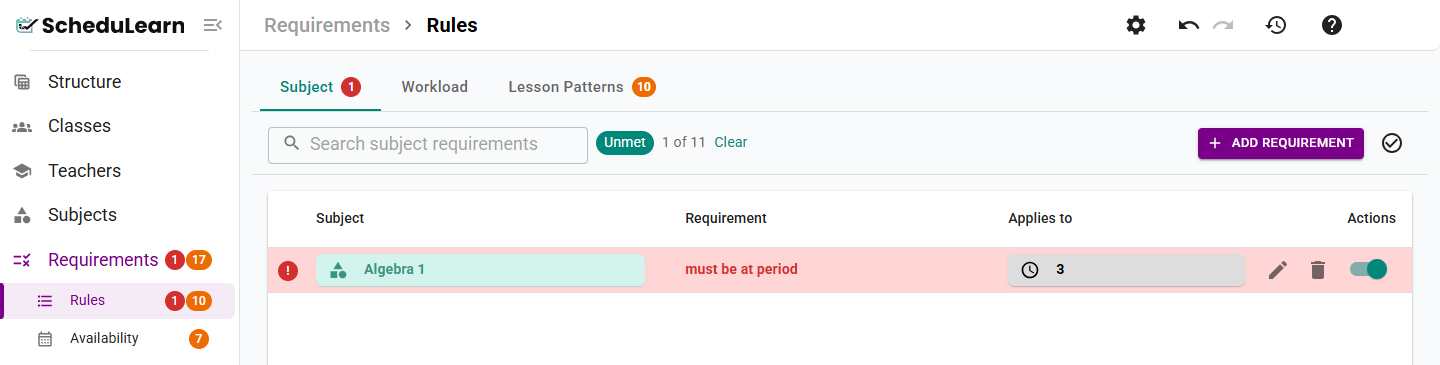 An unmet requirement on the Subject tab, with the Unmet filter on.
On the Schedule Page, the lesson itself is marked. Hover over it to see which requirement it breaks (below).
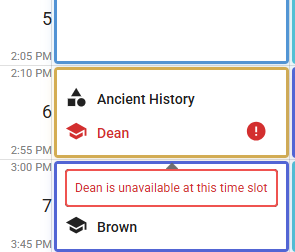 Wilson's Computer Lab lesson is scheduled at a time Wilson is unavailable.
The sidebar's red and yellow counts always reflect the current schedule. After a failed solve, an indigo count beside Requirements, Rules and Availability shows how many of the scheduling conflict's requirements each one lists, until you validate or generate again.
Scheduling Conflicts
When you validate or generate, ScheduLearn tries to build a schedule that meets every requirement. If it isn't possible, the solver may tell you that there is a scheduling conflict. This is a different problem from an unmet requirement: it isn't about where your lessons are now, but about requirements that can't all be met at the same time, wherever the lessons go.
The Requirements Page marks scheduling conflict requirements in indigo. They aren't necessarily broken in your current schedule.
When there is a scheduling conflict, the Schedule Page shows a Couldn't build a schedule banner.
 The banner for a scheduling conflict.
Click See why to open the Requirements Page with the requirements in the scheduling conflict:
- An indigo banner at the top says how many requirements can't all be met together and which tabs list them. Click a tab's name to go to it.
- Each tab counts its scheduling conflict requirements, and the page opens on a tab that has some.
- They are marked in indigo and listed first, and each Rules tab that has some starts with its Scheduling conflicts filter on.
Loosen or turn off one of them, for example by making a hard requirement soft, then validate or generate again.
Click Show unmet requirements in the banner to go back to the requirements your current schedule doesn't meet. Until you validate or generate again, a slim gray bar at the top of the page says your last solve failed, and its See why button brings the scheduling conflict back.
Example: Finding a Scheduling Conflict
As an example, let's create two requirements that can't both be met. Suppose Anderson, a Middle School math teacher, is unavailable during Period 7. However, you also require all math courses—including Geometry, which Anderson teaches—to occur in Period 7.
When you validate the schedule, ScheduLearn can't build it and shows the Couldn't build a schedule banner. Click See why.
ScheduLearn narrows the scheduling conflict down to as few requirements as it can—in this case, two:
-
Geometry must be at Period 7 Hovering over Geometry shows it is taught by Anderson (green arrow below).
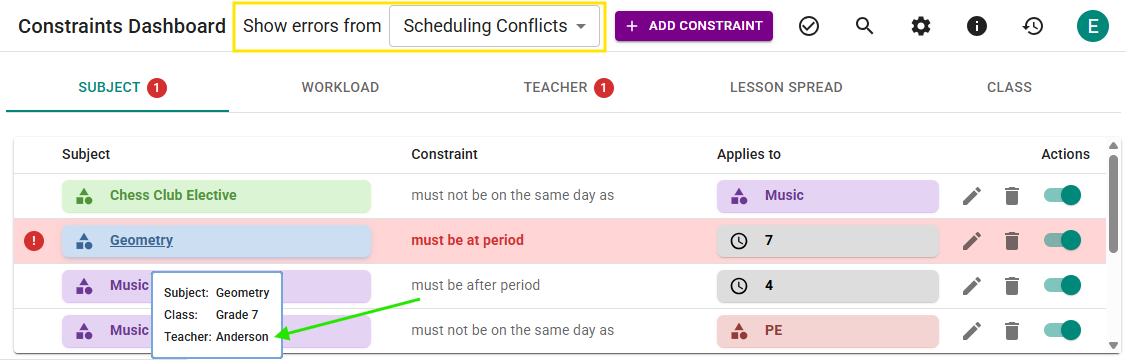 The requirement putting Geometry at period 7.
 -
Anderson is unavailable Monday, Period 7 Anderson is listed under Blocked your last solve on the Teachers tab. Clicking Anderson shows their week. Monday Period 7 is outlined in indigo, and its red ✕ shows that Anderson can't work then (green arrow below).
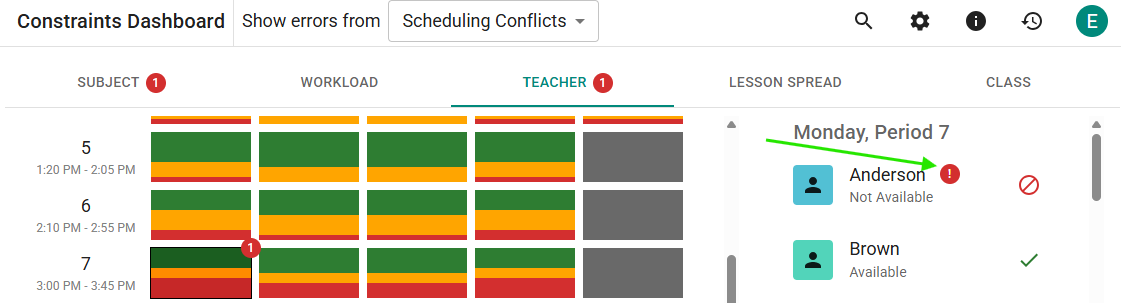 Anderson’s Monday Period 7 Blocked Time.
Note
Although all four days had Period 7 blocked for Anderson, only Monday is marked. ScheduLearn marks as few requirements as it can.
See What to Do When a Scheduling Conflict Is Unclear in the Advanced Requirements Guide for more strategies.