Classrooms
Classrooms are an optional feature. When they are on, you can assign classrooms to subjects, and ScheduLearn makes sure no classroom is double-booked.
Note
The Classrooms feature is off by default to help you get started, because it adds settings throughout ScheduLearn. We recommend leaving it off until most of your schedule is worked out. You can turn it on and off at any point without losing any data.
To turn classrooms on, go to the Schedule Page and click the gear icon on the toolbar (circled in red below) to open the Solver Settings. Then switch on Classrooms Enabled under Other Settings (below).
 The Solver Settings button on the Schedule Page toolbar.
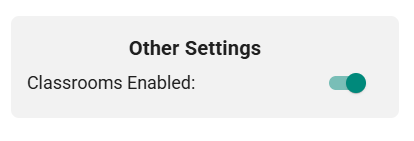 Enabling the Classrooms feature.
The Classrooms Page
Once the feature is enabled, a Classrooms page appears in the sidebar (circled in red below). It works like the Teachers and Classes pages. Click Add classroom to add one.
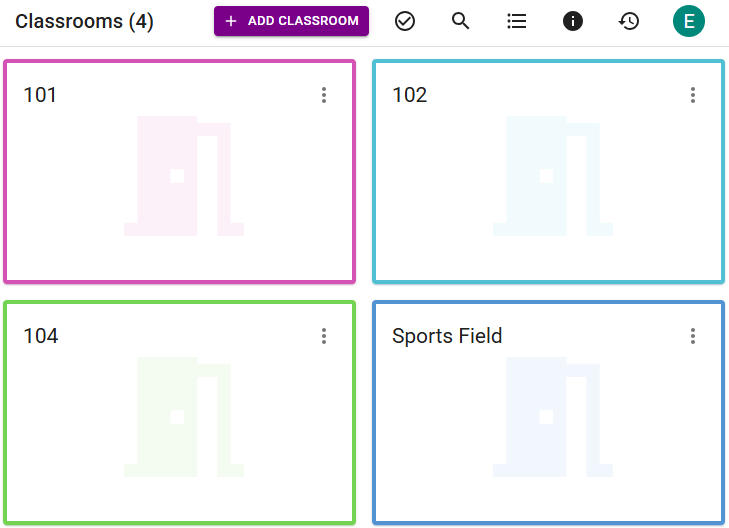 The Classrooms page.
Blocking Unavailable Times
Like teachers, classrooms can have times when they are unavailable.
- Click Edit Availability on the classroom card.
- Click a period to switch it between Available and Blocked. Drag across several periods, or click a day or period heading, to change them together. Classrooms have no "not preferred" option.
- Click Done, then Save on the classroom card.
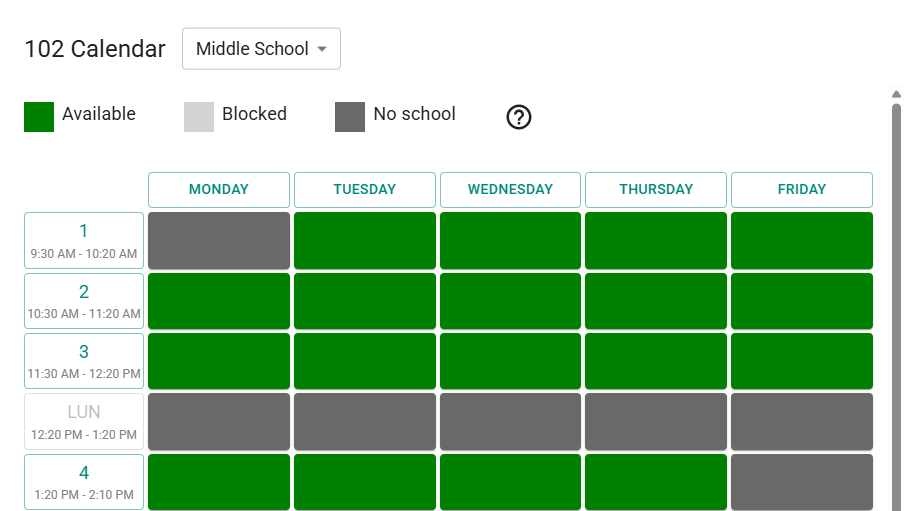 Classroom 102 blocked for all of Monday.
Note
As with teachers, a classroom's availability is specific to a Schedule Structure. If a classroom is used in more than one schedule structure, block its unavailable times in each one, switching structures at the top of the window.
The Classrooms Tab
Under Requirements → Availability, the Classrooms tab shows when classrooms are available. It works like the Teachers and Classes tabs. Each period shows how many classrooms are blocked, and clicking it shows which ones. Pick classrooms in the list to see or change their week (see Availability).
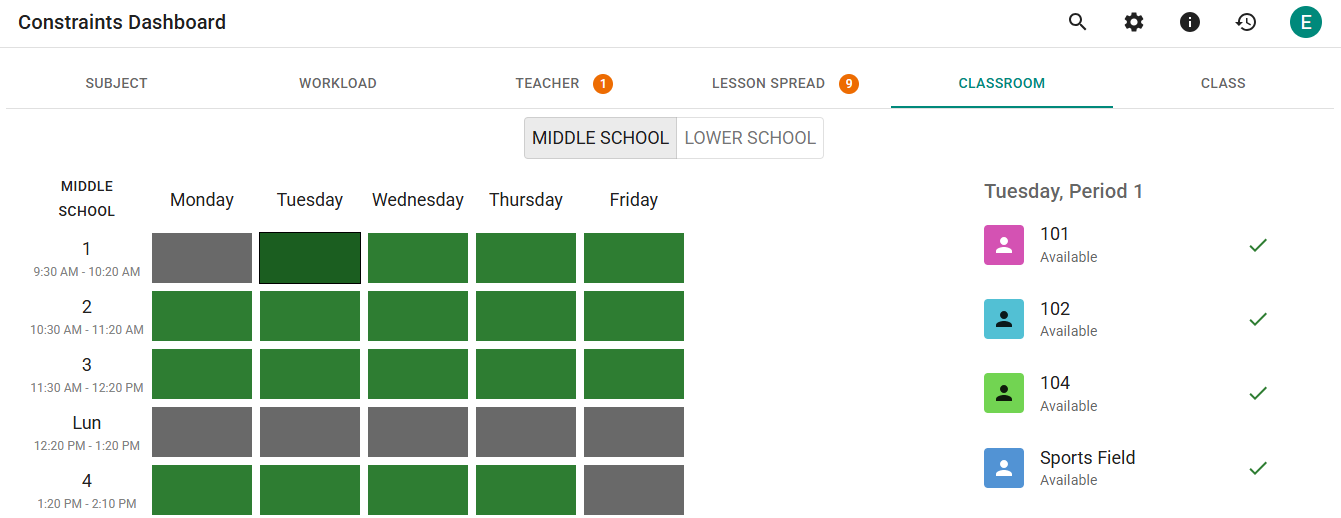 The Classrooms tab, with Monday, Period 1 selected.
Assigning Classrooms to Subjects
With classrooms on, each subject card has a Classrooms field. A new subject starts with every classroom listed and Classrooms needed set to 1, so ScheduLearn picks one classroom for it. Remove the classrooms a subject can't use. Click a classroom's pin once to prefer it, and again to make it always host the subject. It works the same way as choosing teachers (see Allowing ScheduLearn to Choose Teachers and Classrooms).
Subjects you already have
Only subjects you create after adding classrooms start with every classroom. Subjects that existed before have none, and a classroom you add later isn't added to existing subjects. A subject with no classrooms doesn't get one. To add classrooms to many subjects at once, use bulk edit (see below).
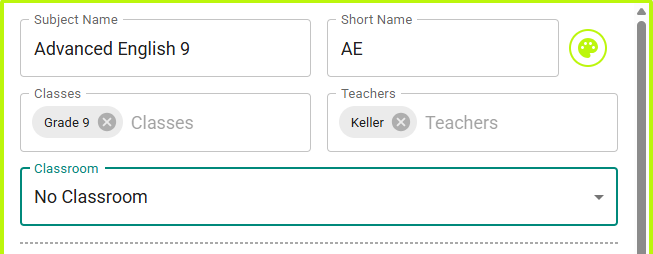 Science can be in 102, 103 or 104, with 102 preferred.
By default, every lesson of a subject is scheduled in the same classroom, or the same set of classrooms if it needs more than one. To let each lesson be placed in a different classroom, uncheck All lessons must be in the same classroom in the Lesson Patterns section of the subject card.
To set classrooms for several subjects at once, select them on the Subjects page and click Edit (see Select Mode). On the Attributes tab, choose classrooms under Classrooms, then click Required to have them always host the subjects, Optional to add them to the pool ScheduLearn chooses from, or Remove.
When you import subjects with the Import Wizard, map your classroom column to Classroom (optional) (below). Several classrooms in one cell, separated by commas, become a pool that ScheduLearn picks one classroom from.
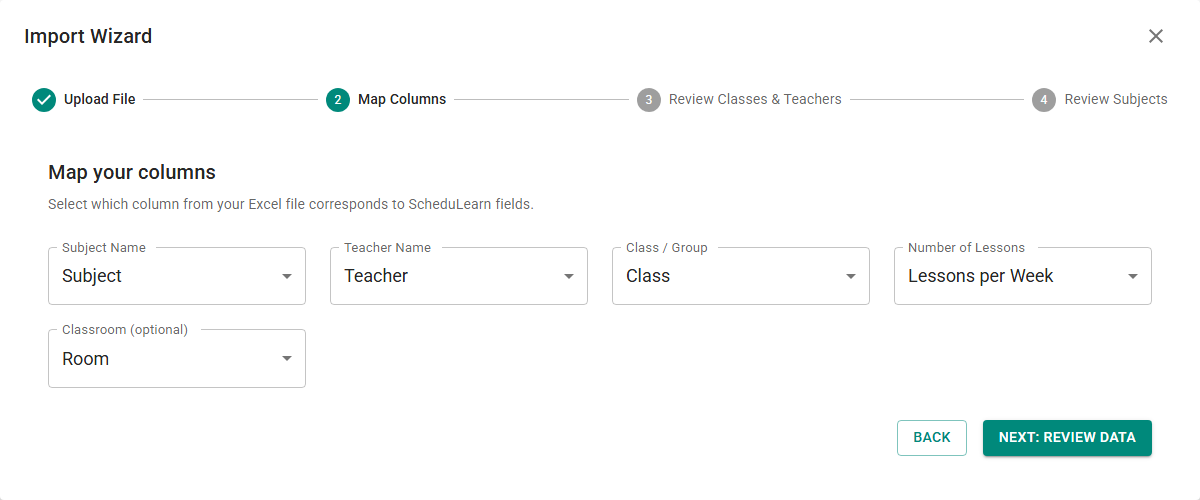 A file's Room column mapped to Classroom (optional).
Classroom View
The Classroom View on the Schedule Page shows the lessons scheduled in a classroom. Choose the classroom from the Classroom list.
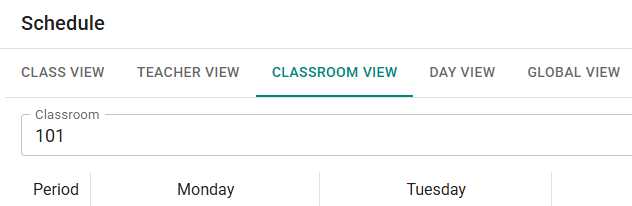 The Classroom View for classroom 101.
To color lessons by their classroom in any view, choose Color Lessons by Classroom under Color Filter in the view options menu (see Schedule View Options). Custom views can include classrooms too.
To export classroom schedules, select them under Classrooms on the Export Page.
Classroom Capacity
With student scheduling, each classroom card also has a Capacity field. It's the number of students the classroom can hold. Leave it empty for no limit.
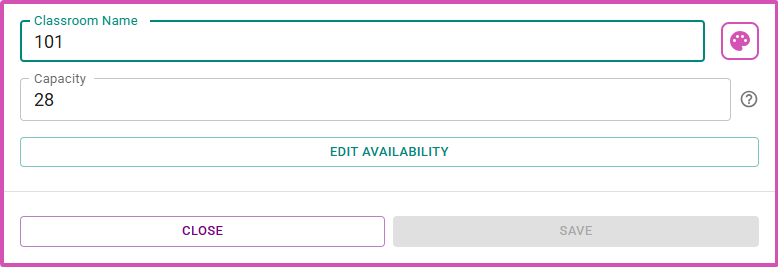 A classroom that holds 28 students.
Partial Schedule
The Partial Schedule section of the Solver Settings includes a Classrooms list. It works the same way as the lists for classes and teachers (see Build A Partial Schedule).
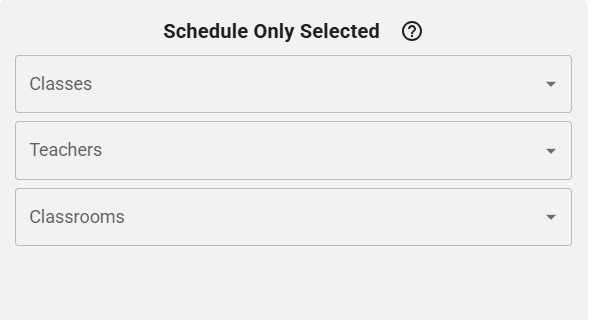 The Classrooms list in Partial Schedule.