Version History
ScheduLearn saves your work as you go. Each save is a version. Open Version History to name a version, go back to one, or delete one.
 The Version History button (circled in blue).
Click the Version History button on the toolbar, shown above, to open the drawer.
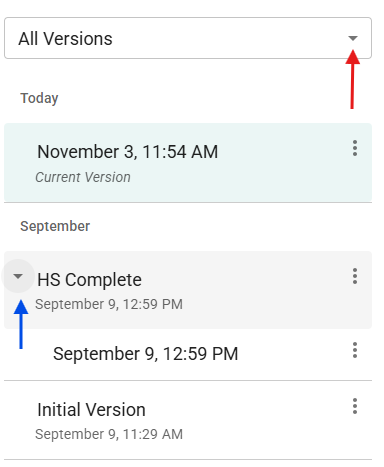 The Version History drawer.
Versions are listed by date. Versions saved less than an hour apart are grouped into one entry; click the arrow beside it (circled in blue above) to see them all. Named, tagged and restored versions each get an entry of their own.
Naming and Saving Versions
Versions are labeled by the time they were saved. To name a version so it's easy to find later, click it to select it, then click its name and type (below). You can also click the ⋮ (three dots) menu and choose Name this version (Rename once it has a name).
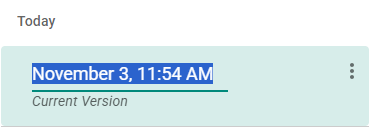 Naming a version.
To find a version quickly, filter the list with the dropdown at the top of the drawer (circled in red above): All Versions, Named Versions or Tagged Versions.
Restoring a Version
To restore a previous version:
- Click the ⋮ (three dots) menu beside the version and choose Restore this version, or double-click the version.
- Click Restore in the Restore this version? dialog.
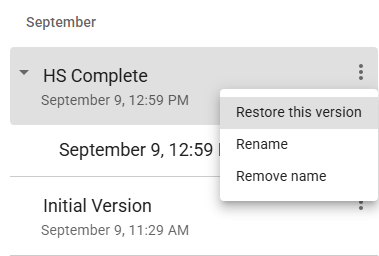 The menu of a named version.
Restoring adds a new version at the top of the list. It's a copy of the version you restored, marked Restored from its name. Your previous work stays in the list.
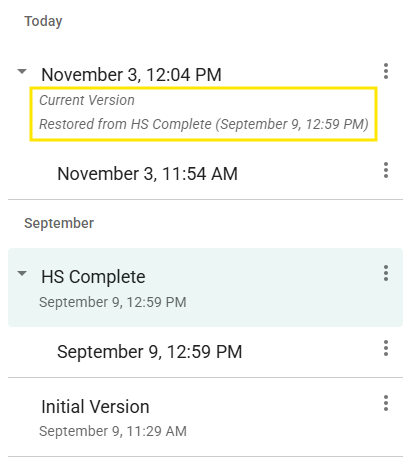 After restoring “HS Complete”, the current version is marked Restored from HS Complete (outlined in red).
The same menu also lets you Remove name from a named version or Delete this version. The current version can't be deleted.
Version Tags
Some versions include automatic tags such as “Schedule Exported,” “Schedule Generated” or “File Imported.” ScheduLearn tags a version whenever you export or generate a schedule, or load a file with Import local version, to help you track key milestones. To remove a tag, click the ✕ on it.
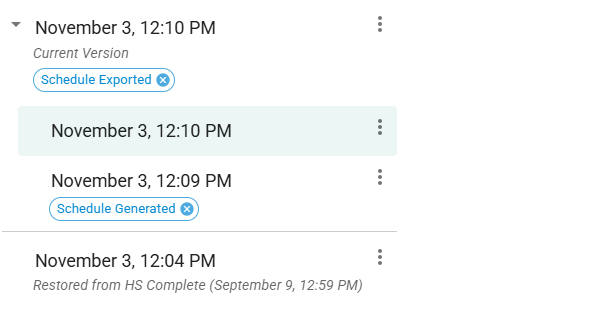 Tagged versions.
Backing Up Your Draft
To keep a copy of your draft outside ScheduLearn, open the account menu and choose Export current draft. To load a saved copy back in, choose Import local version. This is mostly helpful for sharing your exact schedule with ScheduLearn if you run into any bugs or problems using the program.