Export
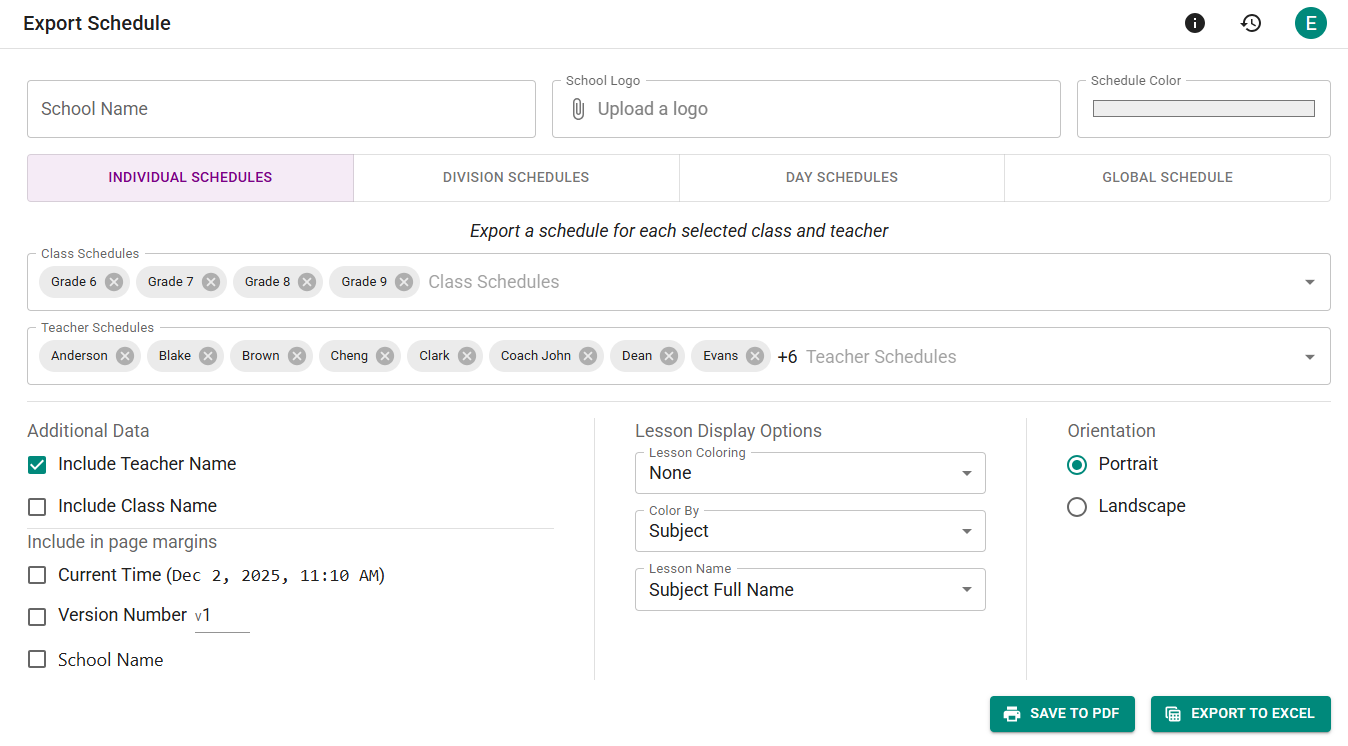
Print your schedule, or export it as a PDF, Excel or CSV file. Need another format? Contact us. We're often able to help!
Pick schedules on the left, preview them in the middle, and choose the format and settings on the right.
 Two classes selected, with Grade 7 in the preview.
Choosing What to Export
Select a schedule to add it to the export. Click its name to preview it without selecting it. Selecting a group, such as Teachers, selects all of them.
- Classes, Teachers, Classrooms and Students — one page each. To change the order students are listed and printed in, use the sort button beside Students.
- Track combinations — a page for each combination of tracks in a class with divisions (see Track Combinations).
- Days — the whole school, one day per page.
- Whole school — the Master Schedule, with every class on one page. If you have more than one schedule structure, each one has its own Master Schedule too.
- Custom views — your custom views.
A day sheet shows every class's lessons on one day (below).
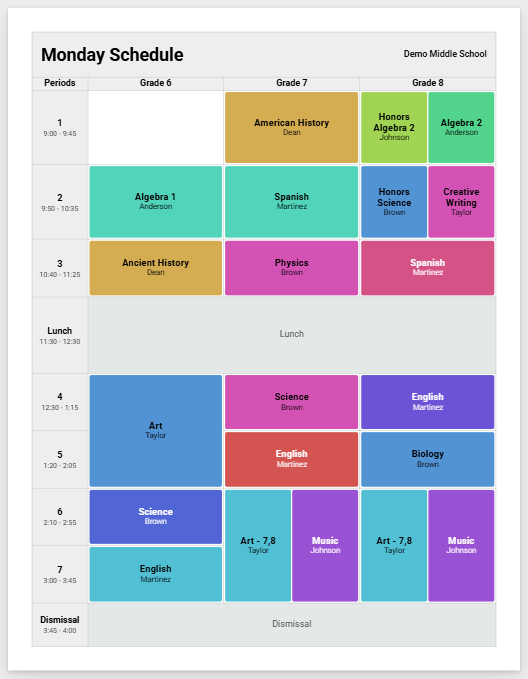 The day sheet for Monday.
To find a schedule by name, use the search box. The Selected filter shows only what you've selected to print.
Ready-Made Exports
When nothing is selected, the middle column offers ready-made exports, such as a page for every class or the Master Schedule for the office. Click one to select its schedules and set the format. You can still change anything before exporting. To see them again, click the home icon above the preview.
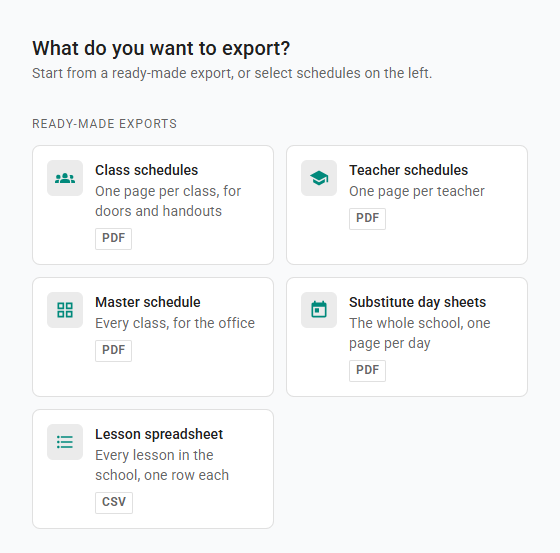 The ready-made exports.
After your first export, Export again repeats it with the current schedule.
Track Combinations
- Under Track combinations, click the class.
- Above the preview, pick a track for each division.
- Click Add to export.
Add all adds every combination at once. Only the combinations you add are listed under the class.
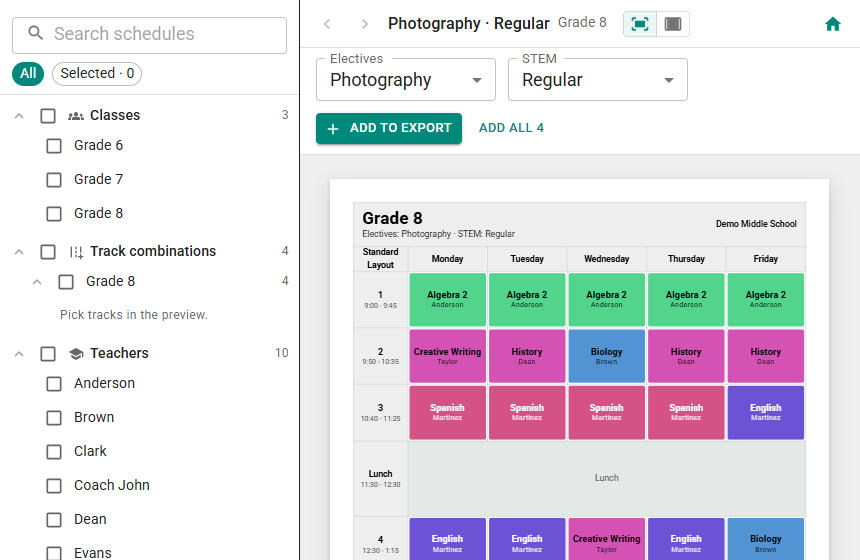 Picking a track combination for Grade 8.
Schedules That Changed Since You Exported Them
After you print a schedule or export it to Excel, ScheduLearn marks it with a dot if a lesson on it changes. Changed at the top of the list shows just those schedules. Click Select only these to reprint only what's out of date.
When you preview a changed schedule, the lessons that changed are outlined. Turn off Outline them to see the page as it will print.
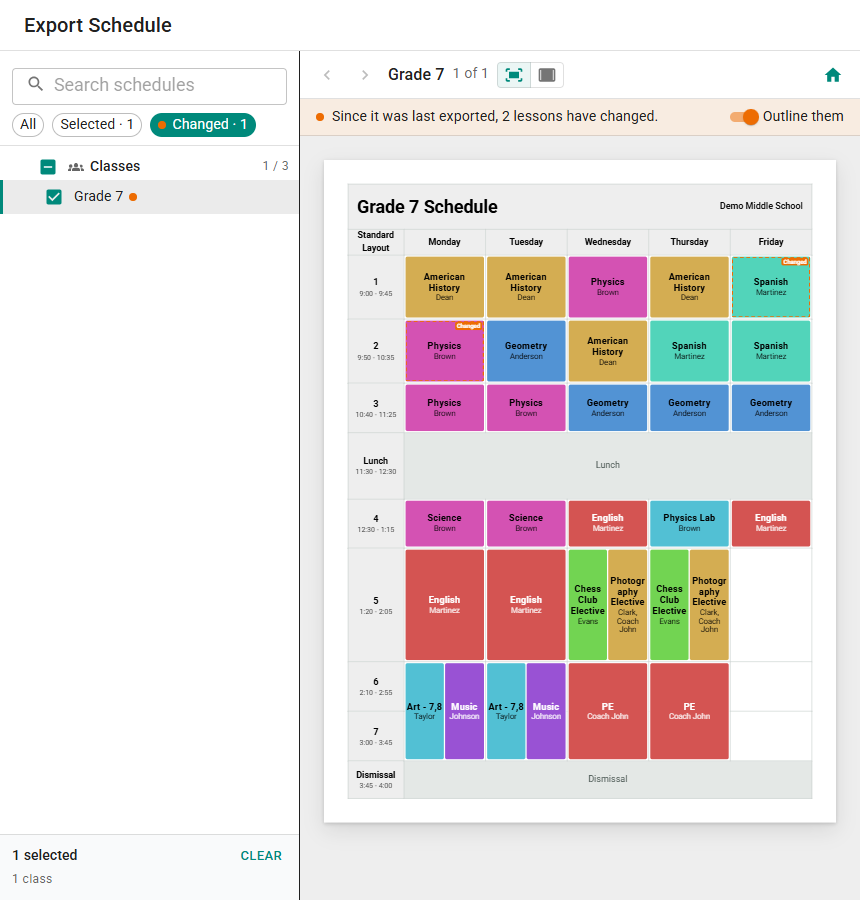 Grade 7 after two of its lessons swapped places.
Formats
Choose the format at the top of the right column.
- PDF — opens your browser's print dialog. Choose Save as PDF to save a file, or pick a printer. Printing works best in Chrome or Edge.
- Excel — downloads one workbook with a sheet for each schedule.
- CSV — downloads a file with one row for each lesson, for spreadsheets and other systems.
When the print dialog closes, a notice says how many schedules were marked as printed (below). If you canceled instead, click Undo on it, so they aren't marked as changed later.
 The notice after printing two schedules.
PDF and Excel Settings
- Page (PDF only) — Letter or A4, portrait or landscape.
- Grid — Days across the top or Days down the side. Period grid shows one row per period. Clock view draws lessons to scale by time, which suits periods of different lengths. Automatic picks the one that suits your schedule.
- On each lesson — what each lesson shows besides its name, such as the teacher or the time. You can also choose the subject's Full name, its Short name or the Lesson name.
- Color — Fill, Border, Dot or None, using the color of each lesson's subject, teacher or class.
- Fit & spacing (PDF only) — whether each schedule shrinks to fit one page, plus the text size, margins and row heights.
The same class with each grid (below).
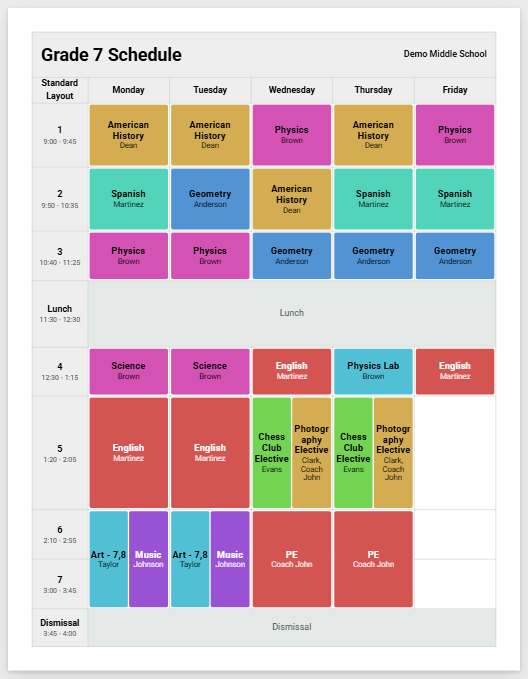 Period grid.
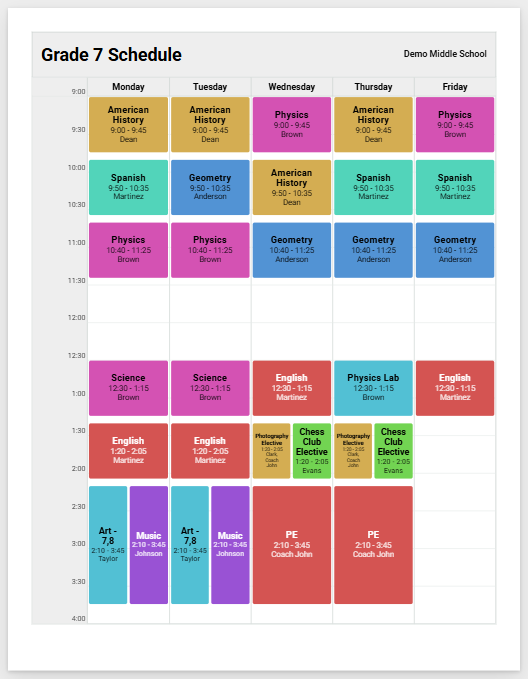 Clock view.
Header & footer holds your school name, logo and header color, and for PDFs, a footer with the print date and a version number (below). Changing the school name here changes it throughout ScheduLearn. The version number goes up when you print after the schedule has changed.
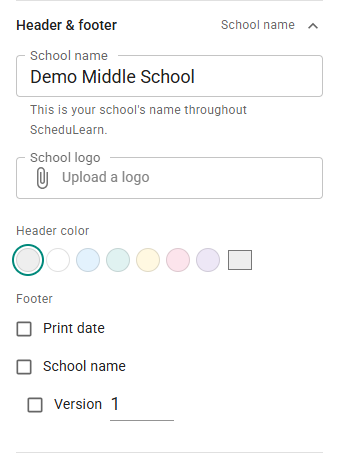 The Header & footer settings.
CSV Settings
- Rows for — the lessons on the Selected schedules, or the Whole school.
- Lessons longer than one period — one row with the period range, a row for each period, or one row for the first period only.
- Columns — check the columns you want.
The middle column shows the first rows as they will be written (below).
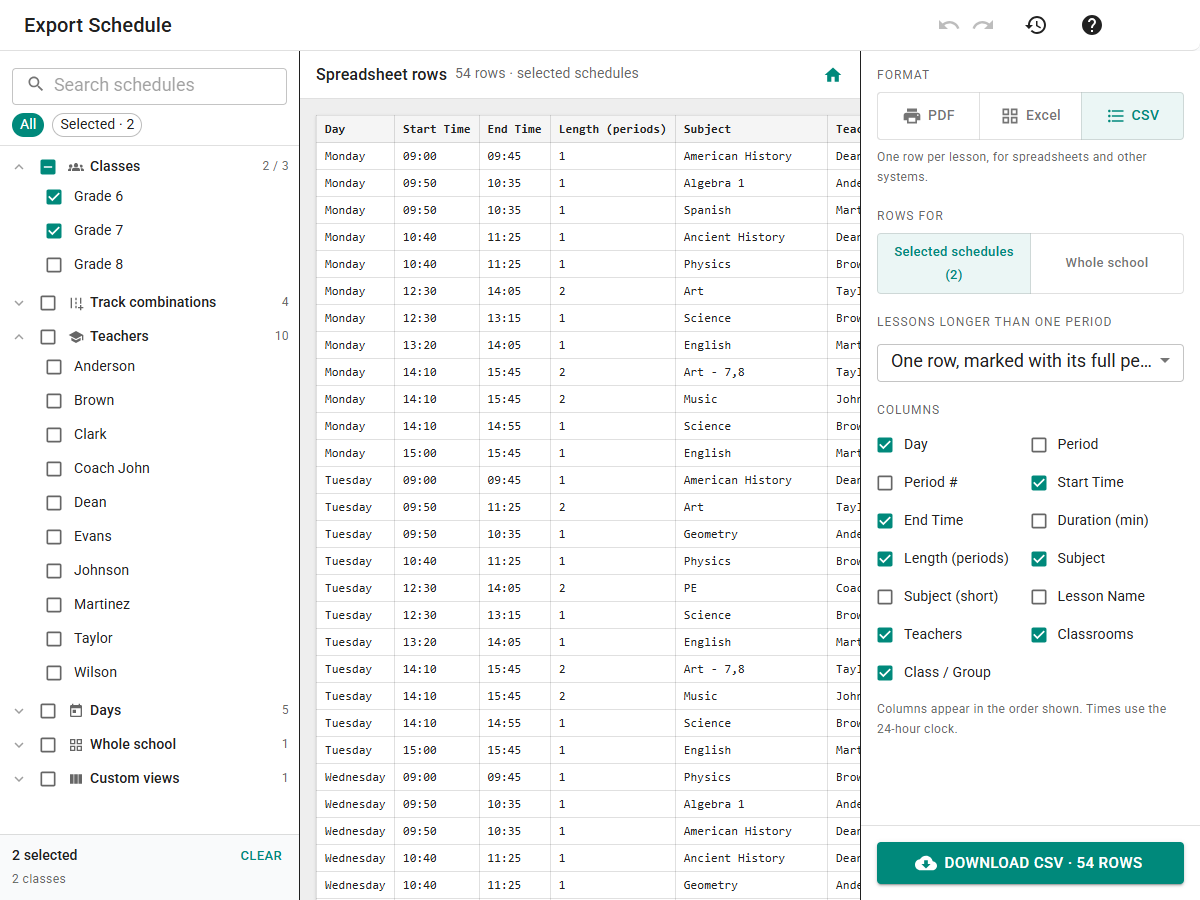 A CSV export of Grade 6 and Grade 7.
Version History Tag
Every export saves a version tagged Schedule Exported (see Version Tags).
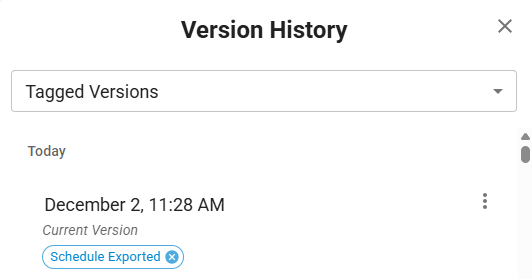 The version saved after an export.