Classes
Classes are groups of students. They aren't subjects. Subjects are what's taught, and classes are the groups of students who take them.
You might create a class for each homeroom or grade. ScheduLearn builds a separate schedule for each class.
Tracked subjects, such as levels or electives, let one class split up for some lessons. So there's often more than one way to set up your classes. If you're unsure, it's often better to make the class broader, for example the whole grade instead of 9A and 9B.
Tip
Start with one or two classes and generate a schedule for them. This helps you learn the app and choose how to organize the rest.
Adding a Class
Click the Add Class button on the toolbar of the Classes Page.
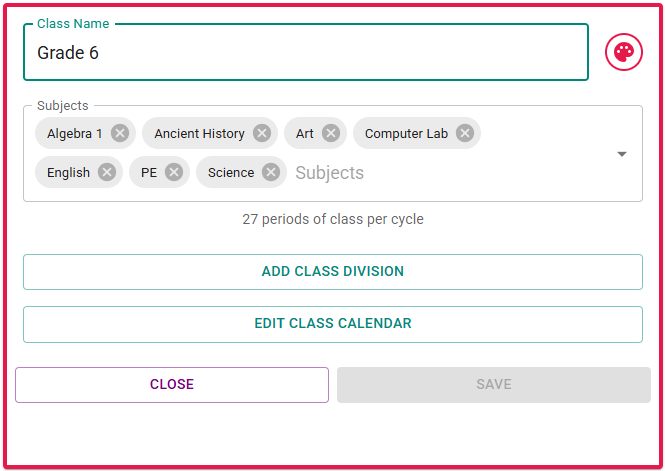 The Class Card used to create or edit a class.
- Class Name — The name displayed in the schedule.
- Color — click the palette icon to change the class color.
- Subjects — All subjects that any student in the class might take. You may not see this field initially if no subjects have been created yet. Typically, you’ll assign subjects to classes while creating the subjects themselves, but you can modify from either end.
- Schedule Structure — If you have multiple schedule structures enabled, you’ll see a selector to choose which structure the class belongs to (below).
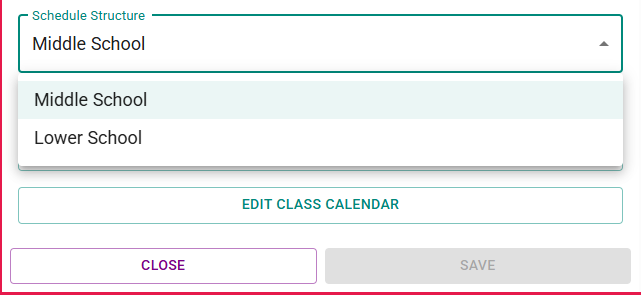 Selecting the schedule structure for a class.
You rarely need to change a class's structure. If you do, the class's availability is deleted. Its subjects move to the new structure, which may delete some of their requirements. A subject shared with a class in another structure is removed from this class and stays in the other one.
Deleting a class also deletes its students and any subjects that belong solely to that class.
Class Availability
On the Schedule Structure page, you can block specific time slots (e.g., days off or periods with no classes). However, those blocks apply to all classes in that schedule structure.
If you only want to block time for a specific class, edit its availability. For example, if 6th grade starts one period later than 7th/8th, don’t block that period on the schedule structure — instead, block it in the 6th grade class's availability.
Click Edit Availability (below).
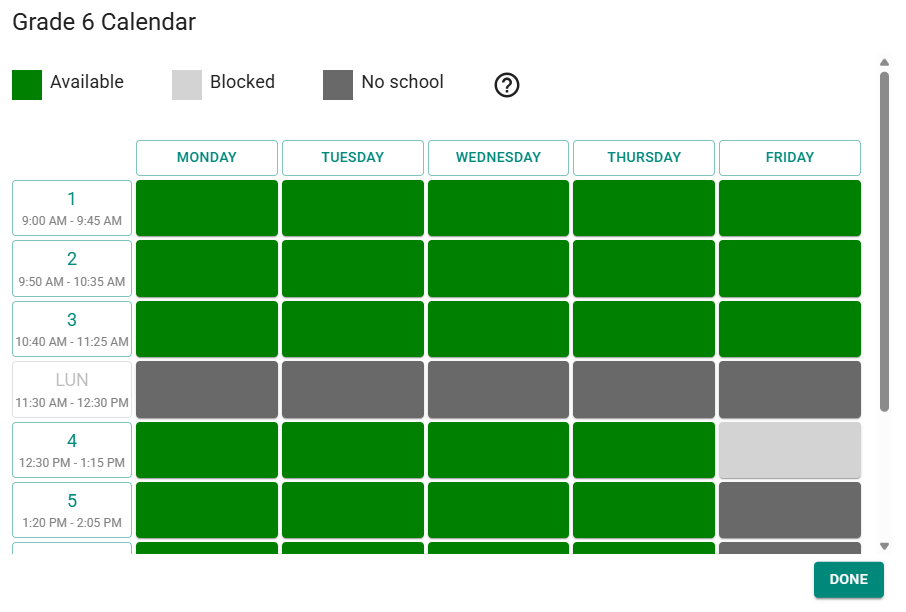 Editing a class's availability to block time for that class.
Block the desired times, then click Done and Save the class.
Tip
You can toggle an entire day or period by clicking its label, or click and drag to select a range of cells.
Class Divisions
Class divisions allow you to define tracked groupings within a class — for example, different levels, homerooms, or elective groups.
A division is made up of two or more tracks, each containing one or more subjects. Students belong to one track per division.
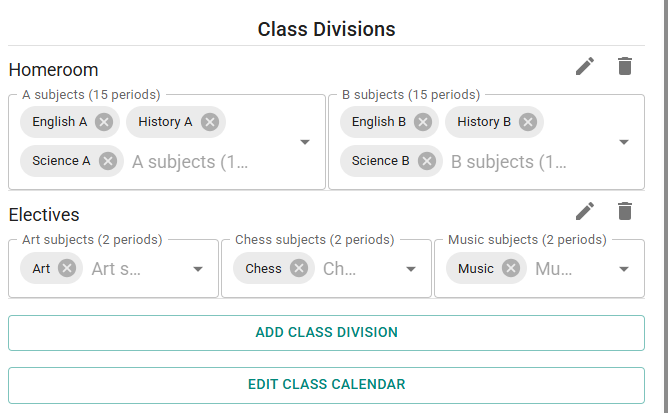 Example of class divisions with multiple tracks per division.
In the screenshot above, there are two divisions: STEM and Electives.
- The STEM division has two tracks: Advanced and Regular, each with three subjects. Students in a track take all of that track’s subjects.
- The Electives division has three tracks of one subject each. So Chess Club Elective, Music and Photography Elective must all run at the same time.
Subjects in different tracks of a division can run at the same time, since no student takes both. A shared teacher or another requirement can still keep them apart. Subjects that aren't in any track are taken by the whole class.
Note
Tracks within a division should generally have the same total number of periods. For example, one track might have a single subject with four 1-period lessons, while another has two subjects with two 1-period lessons each (4 periods in each case). If they don't, the class card warns: "Not all tracks in this division have the same number of periods scheduled."
Creating a Division
Click Add Class Division on the class card (below).
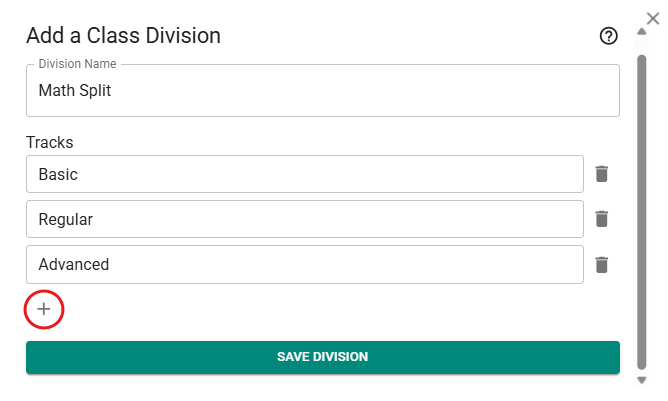 The Add a Class Division dialog.
- Enter a Division Name.
- Name each track. A division needs at least two. Click + to add more (circled in red above).
- Click Save Division, then Save the class.
You’ll now see the division with its tracks listed. Select the relevant subjects for each track directly from the class card.
To edit a division, click the pencil icon. To delete it, click the trash icon.
Divisions aren't used with student scheduling.
Inherited Divisions
When another class's division includes a subject this class also takes, that division affects this class's schedule too. It appears on this class's card under Inherited Divisions, labeled Division Created in Class … with the name of the class that owns it. Hover over the info icon to see which shared subjects connect them. Edit the division from the class that created it.
Students
When Students is on, the class card lists the class's students. It also has a Subject Choices section, which only student scheduling uses (see Subject Choices).