Teachers
Create every teacher in your school, even ones who teach a single subject. When you generate a schedule, ScheduLearn will never double book a teacher.
Adding a Teacher
Click the Add Teacher button on the toolbar of the Teachers Page.
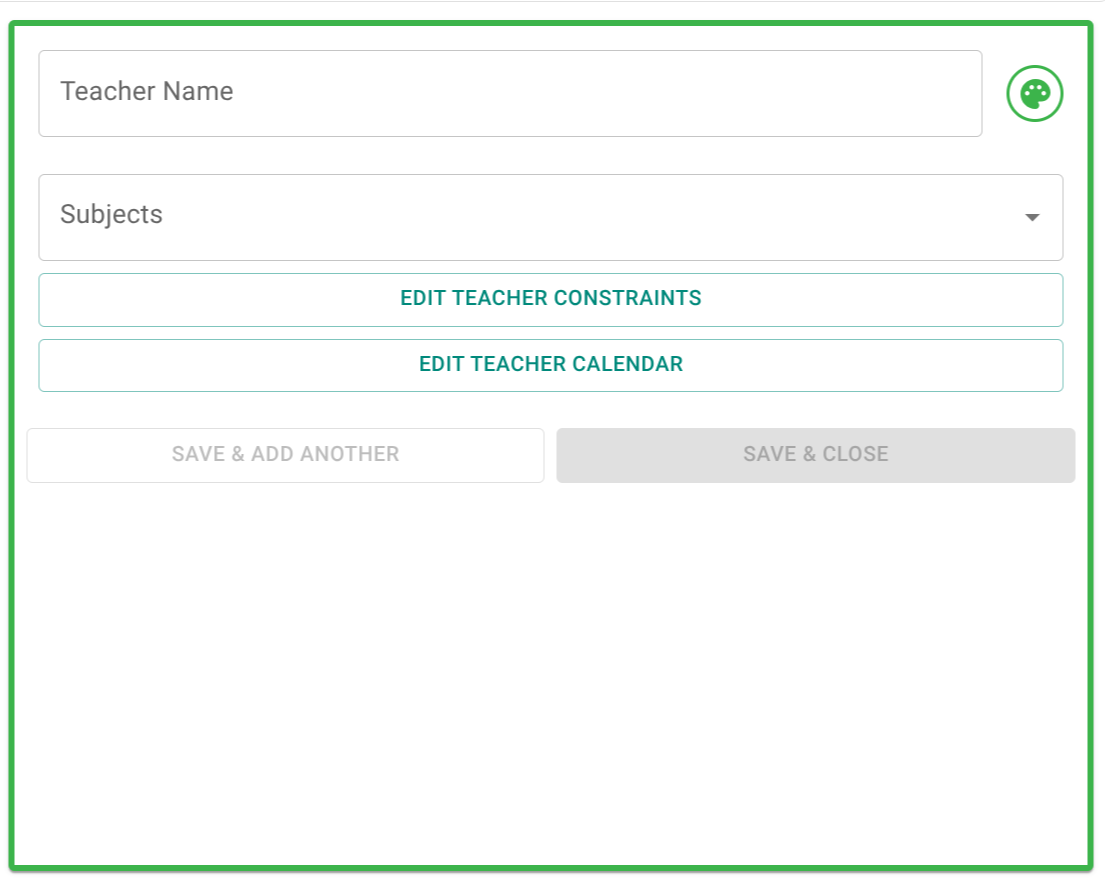 The Teacher Card used to create or edit a teacher.
- Teacher Name — the teacher's name. Teachers are sorted alphabetically on the Teachers Page, so some schools put the last name first.
- Color — click the palette icon to change the teacher's color.
- Subjects — the subject selector shows the subjects that the teacher teaches. You may not see this field initially if no subjects have been created yet. Typically, you’ll assign subjects to teachers while creating the subjects themselves, but you can modify from either end. A subject you add here is one the teacher always teaches.
- A subject with a dashed outline is one where the teacher is in a pool that the scheduler chooses from. Algebra I · 1 of 3 means the scheduler picks 1 of the 3 teachers in the pool, and a star means the subject prefers this teacher. Hover over the subject for details.
- You can remove the teacher from a pool here. To add a teacher to a pool, or to change how many teachers are picked, edit the subject.
Requirements
Teacher Availability
To set when a teacher can work, click Edit Availability on their card. By default, every period that has school is marked green. Periods that don't have school are gray and can't be modified.
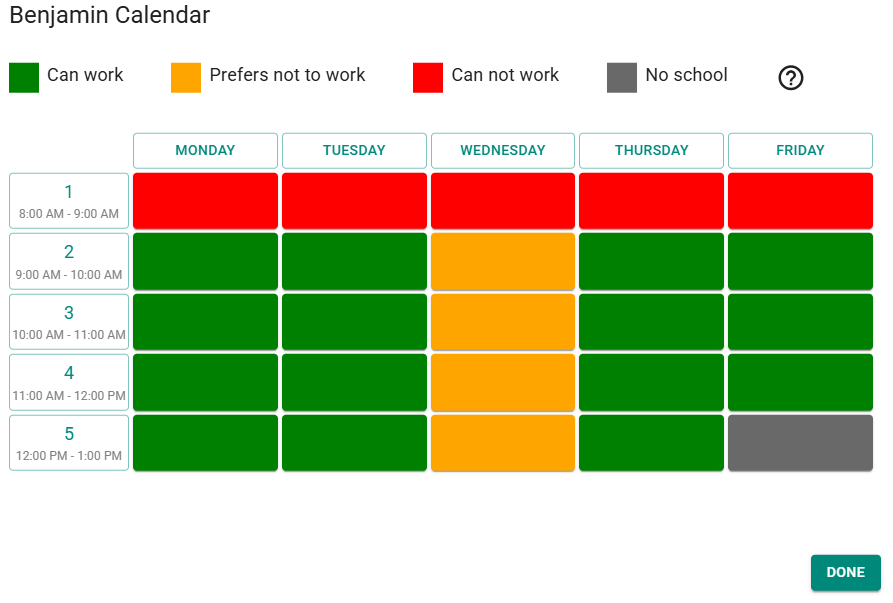 Editing a teacher's availability.
Red cells are hard requirements. ScheduLearn never schedules the teacher there. If the hard requirements can't all be met, there's a scheduling conflict and no schedule is built. Yellow cells are preferences. ScheduLearn avoids them when it can. Use yellow unless the teacher truly can't work at that time.
To change their availability, click a period to step it from free (green) to Prefers not to (amber, –) to Can't work (red, ✕) and back to free. Drag across several periods to change them together, or click a day or period heading to change the whole column or row. Availability looks and works the same on the Requirements page and when you edit several teachers at once.
In the example above, Clark cannot work first period, and prefers not to teach on Wednesday in general.
Teacher Requirements
You may have certain requirements that cannot be modeled simply by blocking time off in a teacher's availability. There are a number of other types of requirements that are meant to help in these situations.
To add a teacher requirement:
- Click Edit Teacher Requirements on the teacher card to open the Teacher Requirement Editor.
- Choose a Requirement Type and fill in its fields.
- Click + to add it.
- Click Done, then Save on the teacher card.
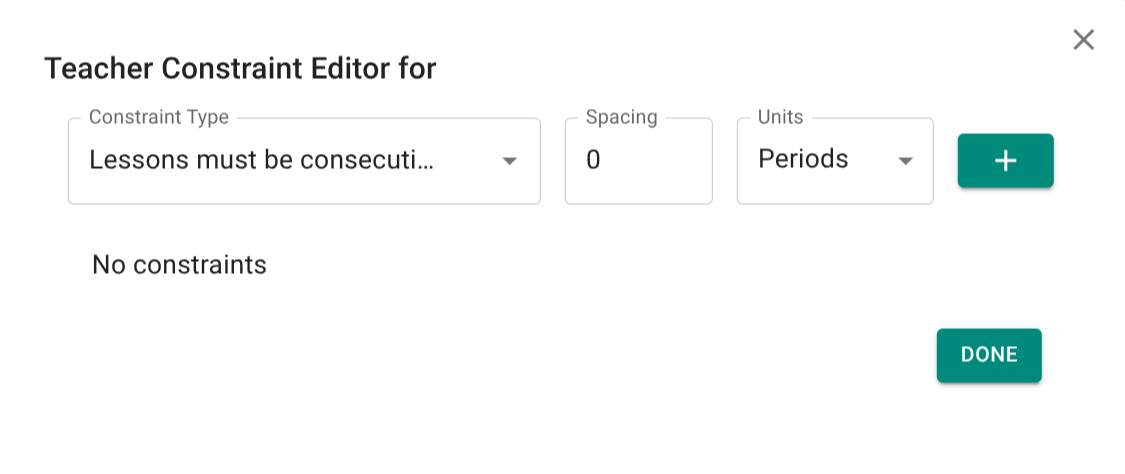 Adding a teacher requirement.
When requirement weights are enabled for Workload, each teacher requirement gets a weight slider, so you can make it soft.
The requirement types are:
- Lessons must be consecutive — applies to all of the teacher's subjects. To make a specific set of subjects consecutive, see consecutive requirements.
- Spacing — how many free periods the teacher can have between lessons each day. 0 means back to back. With 3 lessons a day and a spacing of 1, the lessons fit within 4 periods on any given day.
- Units — Periods or Minutes. Use periods where you can. If your periods vary in length, minutes may work better.
- Max teaching days — the most days the teacher can teach. If you know which days the teacher can't teach, use teacher availability.
- Max lessons per day — the most lessons the teacher teaches on any day.
- Min lessons per day — on any day the teacher teaches, they teach at least this many lessons. It doesn't make them teach every day. The teacher needs enough lessons for this to be possible.
-
Max consecutive teaching time — makes sure the teacher gets breaks. It sets how long they can teach in a row before a break of a minimum length.
- Max Consecutive Teaching Time - how long the teacher can teach before needing a break.
- Min Break Time - how long the break must be.
- Units - Periods or Minutes, for both of the above.
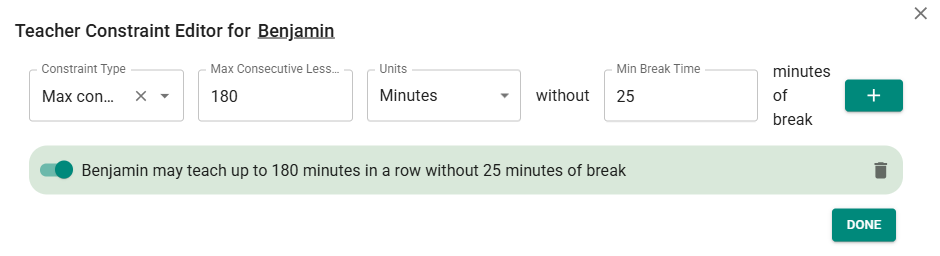 The Max consecutive teaching time requirement.
Multiple Schedule Structures
For any requirement that has a Units option, Periods will not be available if the teacher teaches in more than one schedule structure.
Teacher Requirement Weights
Teacher weights are an advanced feature that is off by default. Most schools don't need them. See Requirement Weights for how weights work.
Enabling Teacher Weights
Turn on Teacher Availability (Yellow Requirements) or Teacher Availability (Red Requirements) in the Requirement Weights section (below). Either one adds a weight slider to every teacher card.
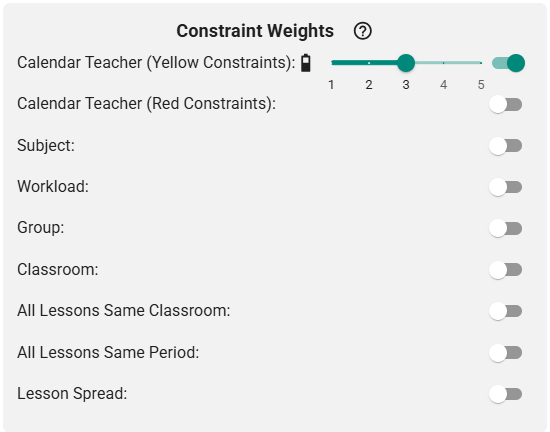 The teacher availability weights in the Requirement Weights section.
See Meaning of a Teacher Weight below for the difference between the two.
Modifying Teacher Weights
Once the feature is enabled, each teacher card has a weight slider with the stops Off, 1–5 and Hard defaulting to "Hard".
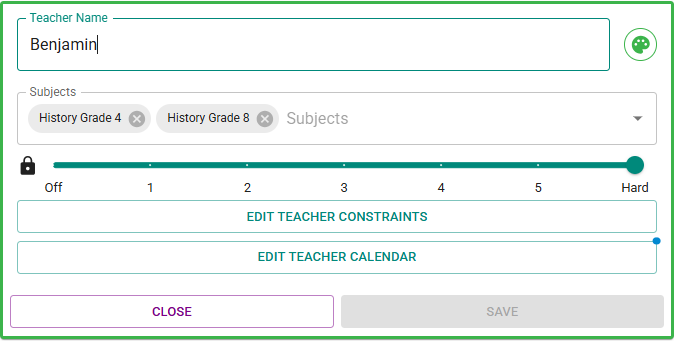 A teacher card with the weight slider.
Meaning of a Teacher Weight (Advanced Usage)
A teacher's weight only has an effect once you enable Teacher Availability (Yellow Requirements) or Teacher Availability (Red Requirements) (see Enabling Teacher Weights). Until then, every teacher's red cells are hard requirements and every teacher's yellow cells count the same.
With Teacher Availability (Yellow Requirements) enabled, the weight sets how hard ScheduLearn tries to avoid the teacher's yellow (prefers not to work) cells:
- 1 to 5 — the higher the weight, the more a yellow cell counts.
- Hard — counts the same as 5. Yellow cells are always preferences, never hard requirements.
- Off — the teacher's yellow cells are ignored.
With Teacher Availability (Red Requirements) enabled, the weight decides whether the teacher's red (can not work) cells must be met:
- Hard — red cells stay hard requirements.
- 1 to 5 — red cells become strong preferences, each counting twice as much as a yellow cell at the same weight.
- Off — the teacher's red cells are ignored.
New teachers start at Hard, so enabling Teacher Availability (Red Requirements) changes nothing until you lower individual teachers' weights. To change many teachers at once, use Select Mode. Making red cells soft can show what is blocking a schedule that won't generate (see What to Do When a Scheduling Conflict Is Unclear).
The slider next to each category in the Requirement Weights drawer scales all teachers at once: raising it makes every teacher's cells in that category count for more.
Teachers and Multiple Schedule Structures
These points only apply to teachers who teach in more than one schedule structure.
Availability for Each Structure
Availability belongs to a schedule structure, and a teacher's structures come from their subjects. Add the teacher's subjects before you edit their availability. A saved teacher with no subjects can't open Edit Availability because ScheduLearn doesn't yet know which structure the teacher teaches in. For a teacher in more than one structure, you can set their availability in each structure.
Once you add a subject to the teacher, ScheduLearn determines which schedule structure the teacher teaches in based on the class that the subject is taught in. When you edit the availability of a teacher who teaches in more than one schedule structure, buttons next to the title of the Edit Availability window let you choose the schedule structure to edit.
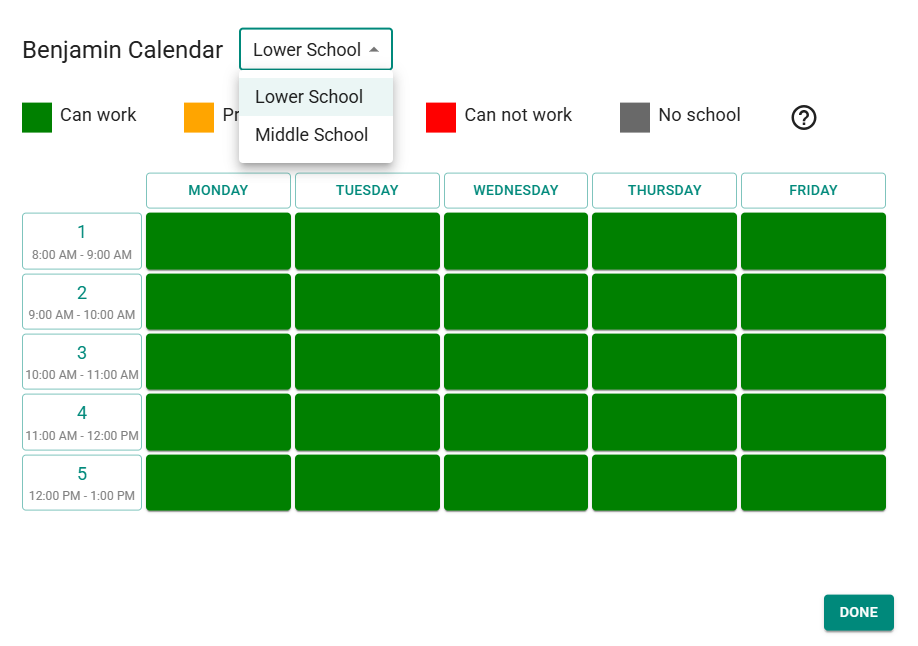 Choosing which schedule structure's availability to edit.
A teacher's availability in a schedule structure only applies to the subjects taught in that structure, so you can set it separately for each one. For instance, if you have a teacher that teaches in both the Lower School and the Middle School but can only teach in the Lower School in the morning and the Middle School in the afternoon, you could block off the afternoon in their Lower School availability and the morning in their Middle School availability.
The closed card for a teacher in more than one structure shows details for each structure.
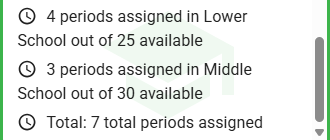 A closed teacher card for a teacher in two schedule structures.
Requirements Set in Periods
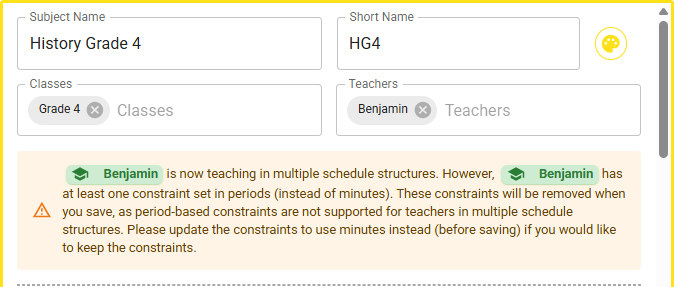
Teacher requirements with a Units field must use Minutes for a teacher in more than one structure. Requirements set in periods are deleted when the teacher starts teaching in a second structure. The subject card warns you before you save (below).
 Warning that period-based requirements will be deleted.
In this example, Brown already teaches in the Middle School. Grade 6 is in the Lower School, which runs on a different schedule structure. Brown's requirement that lessons must be consecutive, set in periods, will be deleted when this subject is saved.
Teacher Schedule Page
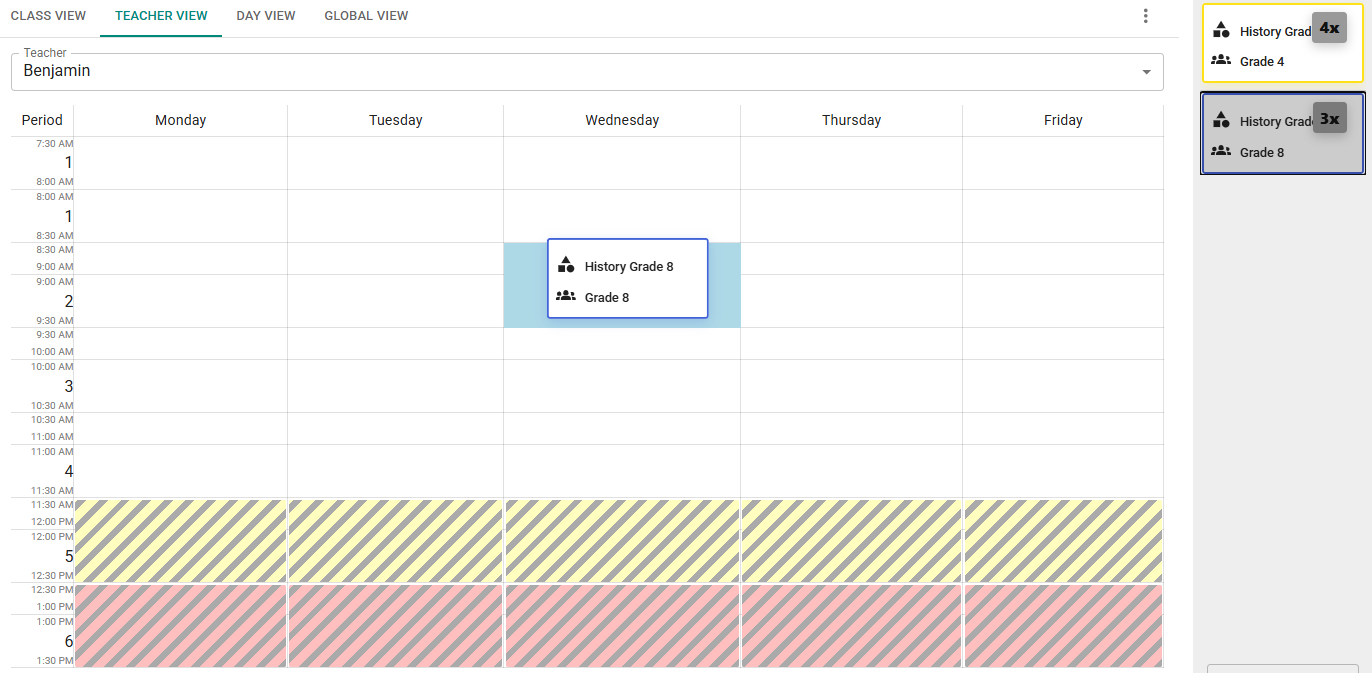
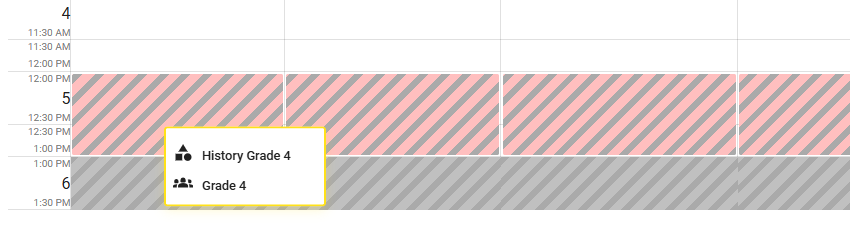
For example, the Lower School runs 8:00–1:00 in five 1-hour periods. The Middle School runs 7:30–1:30 in six. Benjamin teaches History Grade 4 (Lower School) and History Grade 8 (Middle School). He can't teach after 12:30, so:
- his Lower School period 5 (12:00–1:00) is red
- his Middle School period 6 (12:30–1:30) is red, and period 5 (11:30–12:30) is yellow
For a teacher that teaches strictly within one schedule structure, ScheduLearn marks the teacher's red and yellow periods in the schedule the same way their availability does. For a teacher in several structures, like Benjamin, they appear only while you drag a lesson, and only for that lesson's structure.
 Dragging a lesson from the Middle School.
Dragging the lesson from History Grade 8 which is part of the Middle School reveals the teacher's Middle School availability (period 5 yellow, period 6 red). ScheduLearn will highlight where the lesson will be placed and will only allow you to place the lesson in a spot that matches with its schedule structure.
 Dragging a lesson from the Lower School.
Dragging History Grade 4, in the Lower School, shows the Lower School availability (period 5 red). Notice also that 1:00–1:30 has no periods. This is because that time isn't part of the Lower School schedule.
As noted earlier, availability only affects lessons in the schedule structure it belongs to. So, for instance, there would be no issue with History Grade 4 being in the period 4 slot despite the yellow Middle School period 5, which overlaps it.