Getting Started
This guide will walk you through opening an account and finding your way around ScheduLearn.
Account Creation
- Go to https://app.schedulearn.com/dashboard/register
- Fill in School name, Your full name, Email, Password and Confirm password, then click Sign up.
ScheduLearn then takes you straight to the Schedule Structure page (see Schedule Structure).
Finding Your Way Around
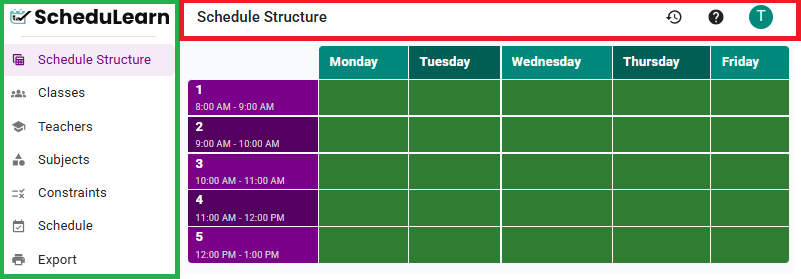 Overview of the ScheduLearn layout.
The main parts of the screen are:
- Toolbar — the bar across the top (outlined in red above). It holds the tools for the page you're on.
- Account menu — the rightmost button on the toolbar. Use it to export or import a copy of your draft (see Backing Up Your Draft), open the Import Wizard, or sign out.
- Version History — the clock icon on the toolbar (see Version History).
- Help — the ? icon on the toolbar. It opens this guide's page for the screen you're on.
- Sidebar — the panel on the left (outlined in green above). Use it to move between pages.
Tip
Collapse the sidebar with the button beside the ScheduLearn logo to get more room.
Resizing Schedule Views
Many pages in ScheduLearn include a schedule or calendar view, such as:
- the Schedule Structure page,
- the Schedule page,
- teacher availability,
- and other scheduling-related screens.
Click the eye icon in the grid's top-right corner, or View on the Structure page, to adjust the Column Width and Row Height.
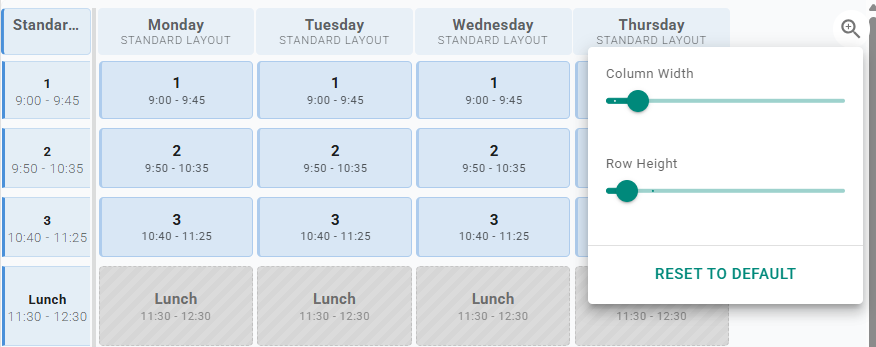 Adjusting the size of a schedule view.
Each slider has a Fill switch. With Fill on, the schedule stretches to fit the space available. Moving a slider turns its Fill off. Reset to Default turns both back on.
Undo & Redo
Made a change you didn't mean to? You can undo and redo your edits anywhere in the editor.
- Undo — press Ctrl+Z (Cmd+Z on Mac), or click the undo arrow in the editor toolbar at the top of the page.
- Redo — press Ctrl+Shift+Z (Cmd+Shift+Z on Mac); Ctrl+Y also works. You can also click the redo arrow next to the undo arrow.
What's New
After each ScheduLearn update, a window shows what changed (below). Once you close it, it doesn't appear again until the next update.
 The What's New window.